
TuneFUSION
Hints:
TuneFUSION has one purpose: automate synchronization of your audio collection to various devices or locations:
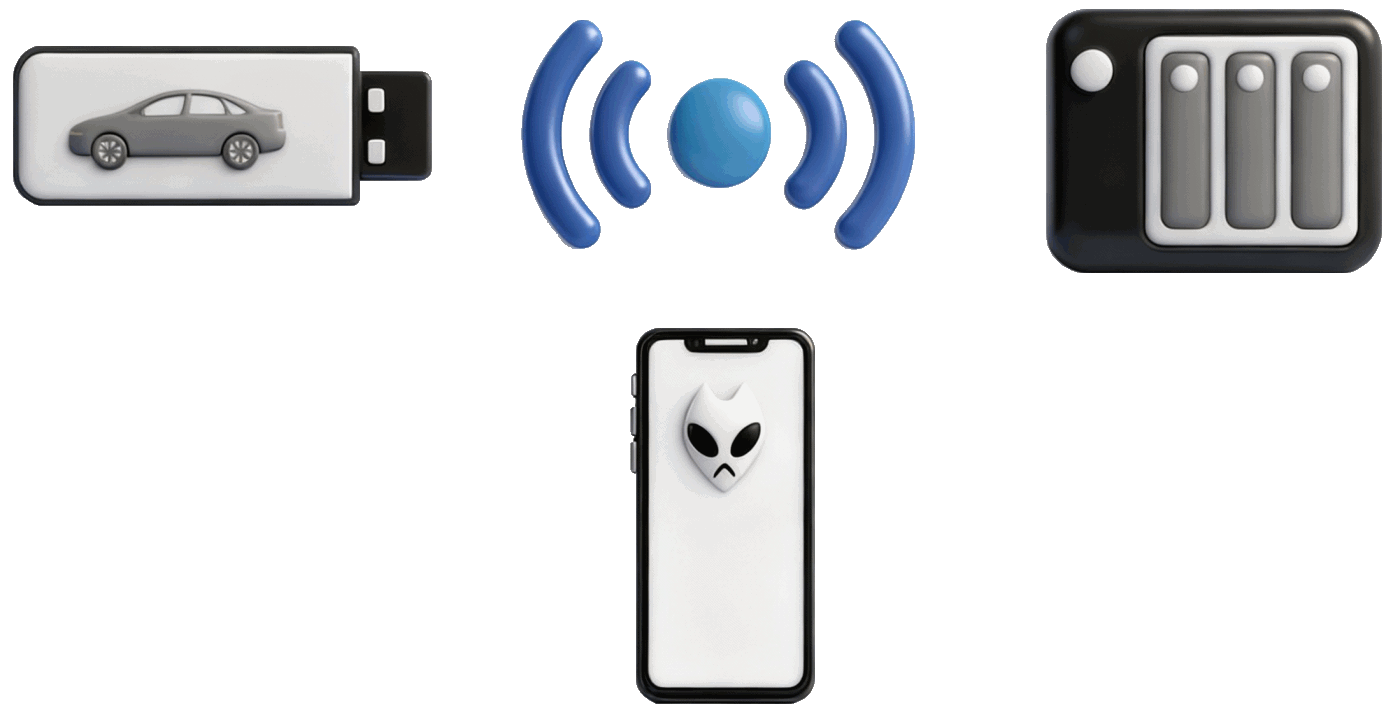
Supported devices:
When synchronizing a music collection, a favorite subset of your music can be selected, include or exclude specific artists / genres, or albums. The audio format can be changed, normalize all tracks to the same volume, TuneFUSION can do all this with ease.
TuneFUSION can also automatically sync when the device appears. Customize TuneFUSION once to meet your requirements, set and forget.
Throughout TunsFUSION is this  help icon, click to show relevant help for that part of the program.
help icon, click to show relevant help for that part of the program.
- Removable flash drives Perfect for the car, or portable player,
- Mobile foobar2000 Featured audio player for your mobile phone,
- Network Shares To another device on your network,
- FTP File Transfer Protocol, a method of transfering files over the network.
Synchronization
When synchronizing a music collection for a car, a favorite subset of your music can be chosen. Include a new album selection, transcode the audio format and normalize all tracks to the same volume. TuneFUSION can do all this with ease. Automatically synchronize when a device appears on the system, such as plugging in a USB flash drive.
Customize TuneFUSION once to meet your requirements, then set and forget.
Adding a Synchronization
After installation TuneFUSION appears on the taskbar in the system tray section (on MacOS it appears all the time in the Dock):

If TuneFUSION is hidden click the arrow button to customize shown icons.
The icon communicates the current status of TuneFUSION:
Click on the TuneFUSION icon to bring forward the settings page:
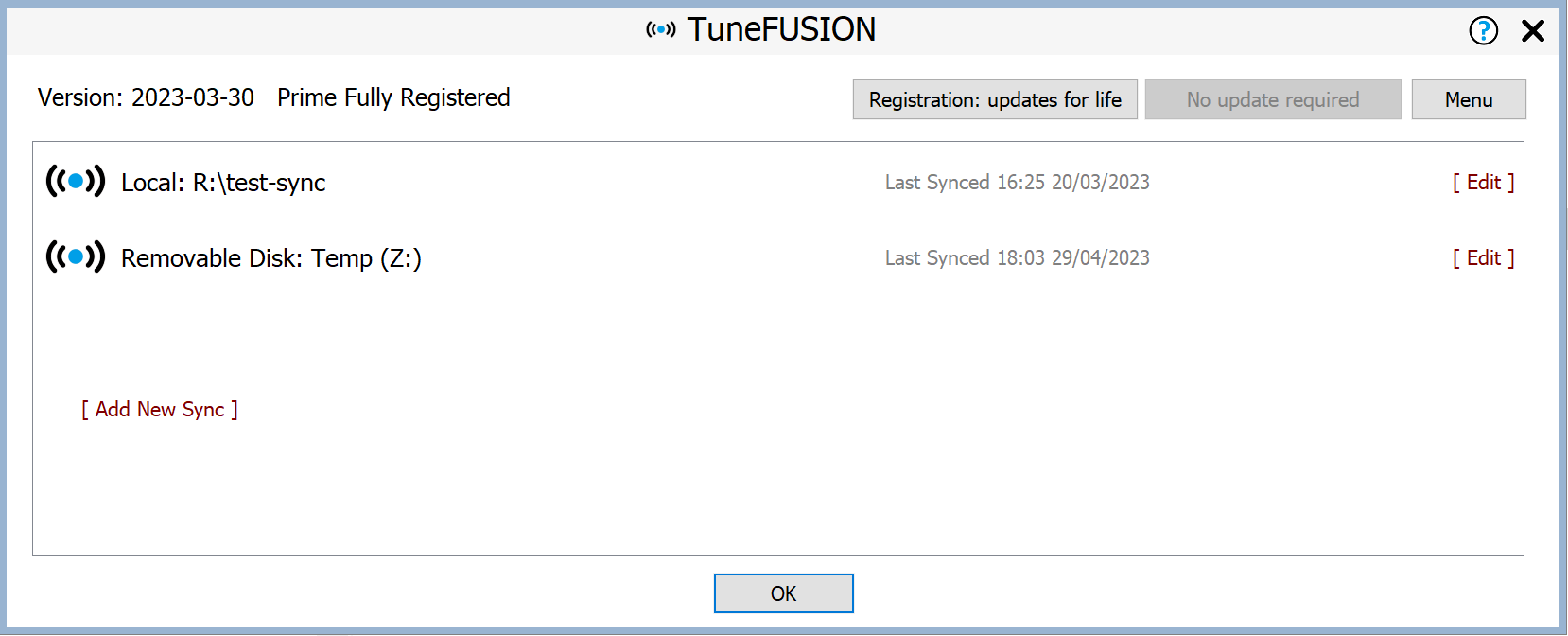
Click [Add New Sync] (on MacOS click +) to create a new synchronization and choose the type of sync required and follow the instructions on the screen.
By default when creating a removable disk synchronization, settings are pre-populated for most compatibility. Tracks are adaptive volume normalized (see the DSP section), this continuously adjusts the loudness of a track so it can be heard in a noisy environment, such as car, these settings can be edited as required.
Continue with Customize Synchronizations
 | TuneFUSION is running, but not actively syncing. |
 | TuneFUSION is synchronizing (icon will animate). |
 | An error occurred during the last sync. |
Encoders
TuneFUSION can convert to the following formats:
 |
AIFF | Uncompressed Apple Format [.aif] |
 |
AAC | Advanced Audio Compression (LC, HE, HEv2) [.m4a] |
|
Apple Lossless (ALAC) | Lossless codec [.m4a] |
 |
FLAC | Popular Lossless [.flac] |
|
M4A | Container format (AAC, Apple's own Lossless) [.m4a] |
 |
Monkeys Audio | Lossless codec [.ape] |
 |
MP3 (Lame) | dBpoweramp uses the excellent MP3 Lame [.mp3] |
 |
Musepack | Lossy codec for 128Kbps+ [.mpc] |
 |
Ogg Vorbis | Open source [.ogg] |
 |
opus | Newer Ogg replacement [.opus] |
 |
Wave | Uncompressed PCM [.wav] |
 |
WavPack | Lossless codec [.wv] |
 |
Windows Media Audio (WMA) | Microsoft V10 Pro, standard, lossless & voice. [.wma] |
Uninstalling
Uninstall by choosing Start >> type: Installed Apps or on macOS open finder, browse to Applications and drag the application to the trash can.
Copyright © illustrate 2026, All Rights Reserved