
PerfectTUNES { Help Index > ID Tags }
Audio tracks contain embedded metadata called ID Tags, these store more detail than filenames, such as Artist, Album and Genre. When your collection grows in size, it is vital that your metadata is correct. Anyone with 10,000 audio tracks will find that the same artist appears multiple times, with slight spelling differences, such as Beyonce and Beyoncé.
Having a tool which can show your audio tracks in many different views is invaluable to improving your metadata, PerfectTUNES ID Tags can:
Browse by File & Folders locate and edit files exactly as they appear on your computer,
Browse by Metadata everything is collated and presented by ID Tags, browse by artist, or album, as a player might see the tracks,
List and Recommendations PerfectTUNES can make educated suggestions on how to improve your library,
Sort Tags list all sort tags and check for consistency.
Browse by Metadata everything is collated and presented by ID Tags, browse by artist, or album, as a player might see the tracks,
List and Recommendations PerfectTUNES can make educated suggestions on how to improve your library,
Sort Tags list all sort tags and check for consistency.
Browse by File & Folders
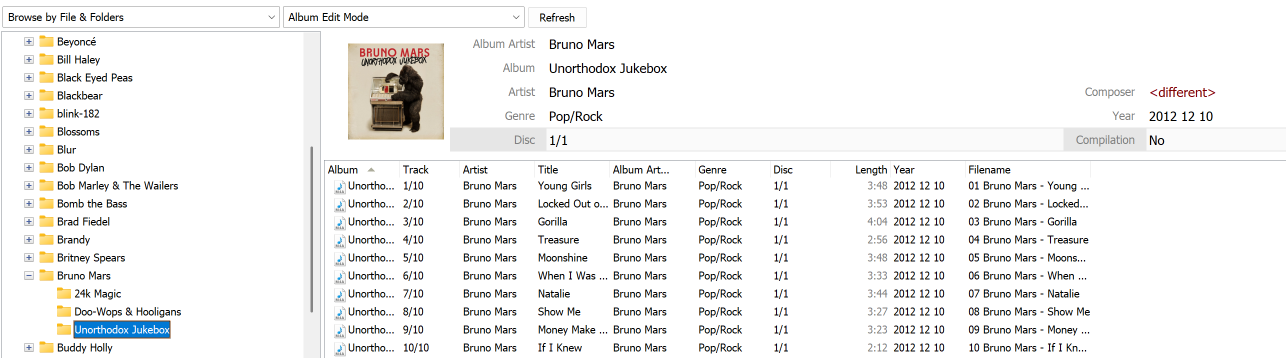
Browse to your music using folders on the left pane, tracks in the selected folder are listed in table form for quick editing. There are two ways of editing tags, default is Album Edit Mode where it is assumed that all tracks in the folder are for a single album.
Above the track listing is an album header, any items changed in the header (Album Artist, Album, etc.) will update the ID Tags for all tracks shown, unless a single track, or multiple are selected. To choose specific tracks to edit, left click on the top track, and hold the shift key and click on the end track to make your selection, selected tracks show in a light blue color and the header reflects this color also.
Items in the track listing can be edited, click on an item (such as Title) and an edit box will show, to move to another field use the up/down/left and right arrow keys. Changes to tags are written straight away. Right clicking on a single track, or a selection of tracks brings up a tag editor which lists all the tags present in the file(s).
Album art can be chosen by left clicking on the artwork image.
Right click on a column header (such as Track) to add additional columns.
The other way of editing is Mixed Track Editing, the album header is removed and a new button appears next to Refresh called 'Scan Sub-folders' which will search the sub folders for audio tracks and show the results on the one page.
Browse by Metadata
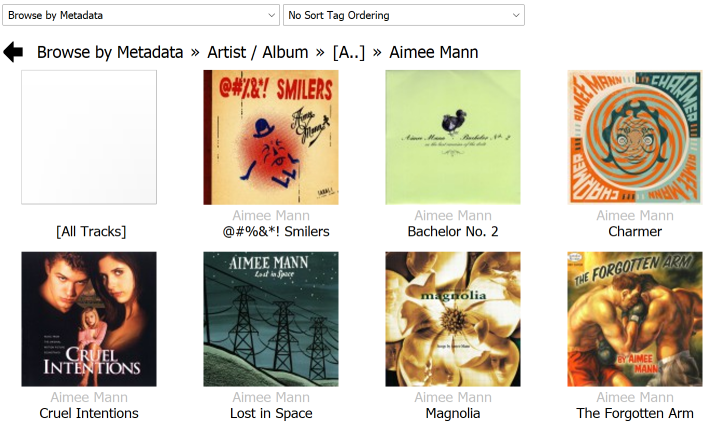
Instead of using folders and filenames to browse your collection, the actual metadata it's self can be used, in effect browse how a music player might present your music. This makes it easier to find and correct incorrect metadata.
If the tracks contain sort tags (such as Artist Sort), there is the option to browse with the tracks organized by the sort tags. What is a sort tag? it a an additional tag which tells a player how to place the item, for example there is Artist which could be 'The Beatles' and there could be a sort tag Artist Sort set to 'Beatles'. This informs the player to list The Beatles under B.
List & Recommendations
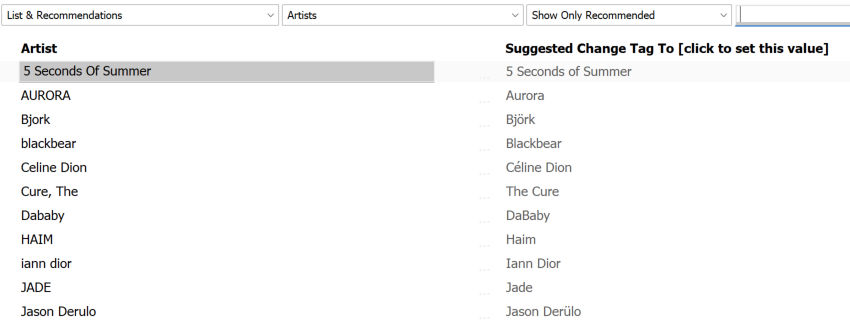
Each tag of a certain type (Artist, Composer, etc.) is listed alphabetically for easy editing. Changing any value changes the tags associated in all files with said prior tag value. Common tag errors can be spotted and quickly corrected without the need to know which actual files have these errors.
PerfectTUNES will also suggest a tag to combine with for certain items which close matches, clicking on the suggestion replaces that value with the suggested value. A value can be manually corrected by clicking on it and typing a new value.
The option to only show recommendations is useful for large libraries. In addition there is a search box, type a few characters in and results of matching fields will be shown.
Compilation tags can be checked across the whole collection also, inconsistencies listed, ideally for compilation the value '1' should be written for a compilation, and no tag present if not a compilation. These issues (such as Compilation=Yes and Compilation=No) can be fixed in one click.
Sort Tags
Sort tags can be used by your player to list an item in one location, whilst its shown name is a different value. An example of a sort tag is a composer sort set to Beethoven, whilst the composer is set to Ludwig van Beethoven. When browsing the value 'Ludwig van Beethoven' would be listed with the items beginning with B.
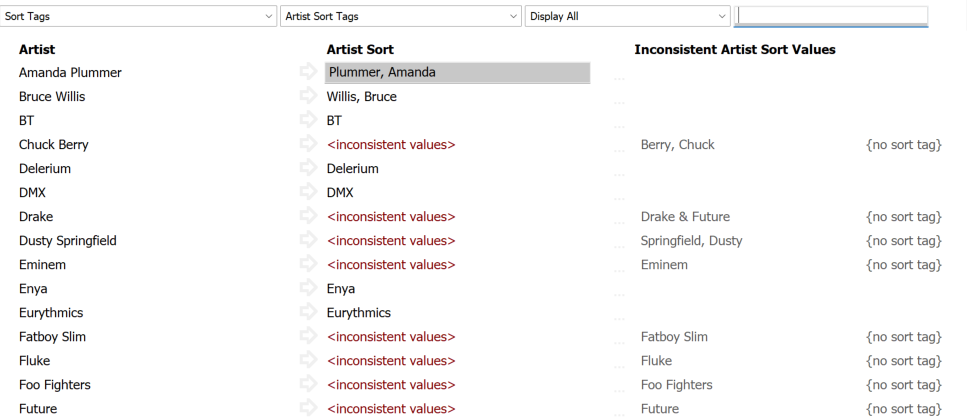
The value listed in the first column is the actual artist, or composer value, the 2nd column item is the actual sort value.
The listing shows all the sort tags for a given item (Artist, Composer, etc). If there are inconsistent values (that is not all files by an artist have the same sort tag), then the values are listed. In the image above, some of the 'Chuck Berry' tracks have a sort tag of 'Berry, Chuck' but some have no sort tag '{blank}', any of these 2 values can be clicked to set all the sort tags to the one clicked.
Clicking the -> arrow button copies value from the first column to the 2nd column for quick editing.
There is also a search box, type a few characters in and results of matching fields will be shown.
Options
The spanner icon in the top corner gives access to the following options.
Enable Undo Changes the original tag values are stored, so that any changes can be undone on the Previously Edited page.
Preserve Modified Date on Tag Write when updating ID Tags the file modified date does not change
Enable ID Tag Predictive Typing whilst typing auto suggests artist and album
PerfectTUNES Edit ID Tags Folder Right Click places a menu item on Windows Explorer folder right click which invokes ID Tag editor
Custom Tags allows non standard tags to be added for selection as a column in the file & folder view.