
PerfectTUNES { Help Index > De-Dup }
The larger your music library, the more chance of a duplicate track. That is the same track appearing twice, perhaps it has a miss spelt name, or is in 2 different audio formats (such as mp3 and FLAC), finding these duplicates can be difficult. PerfectTUNES De-Dup actually listens to tracks and creates a unique fingerprint of the audio, so it does not rely on filenames or metadata to match:
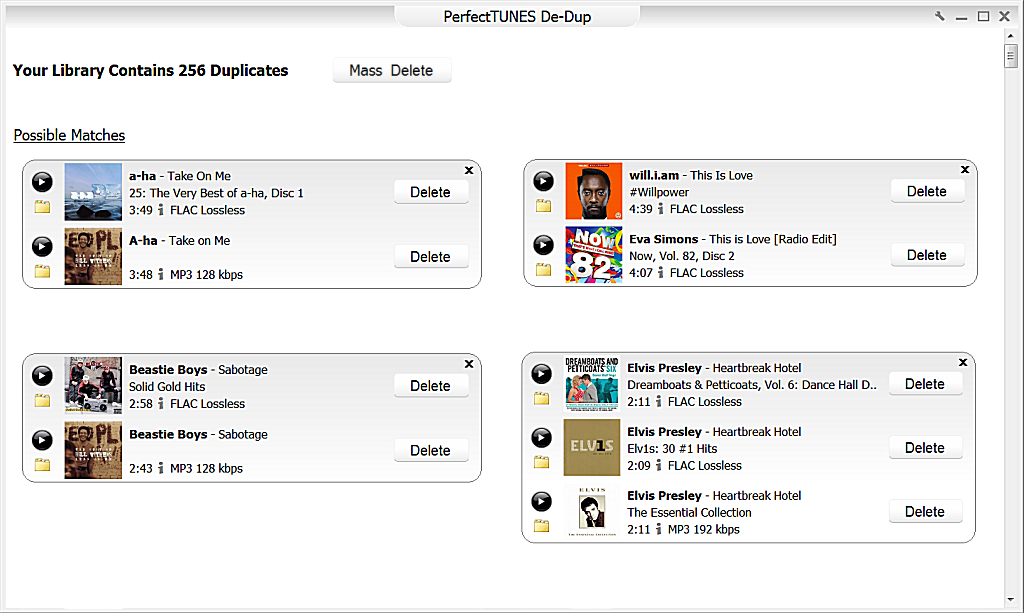
Matches are shown as either:
When deciding if a duplicate should be deleted, check the artist and title, in the above example the Beastie Boys track is a duplicate in FLAC and mp3, the lower quality track is listed 2nd, or 3rd (if both were FLAC then there is no quality ordering). The Yellow Folder icon can be clicked to show the track location, or the 'i' information button clicked to view details of the audio track.
The play button allows matching tracks to be auditioned side by side:
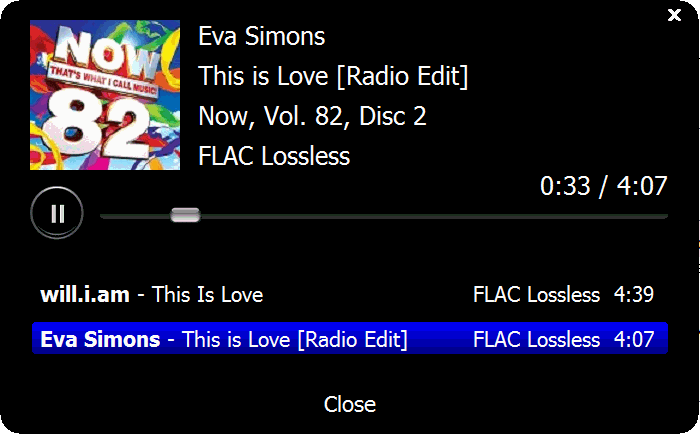
In the above example the track is from different artists. Playback is started, and can be switched between the two audio tracks by clicking on the track name. Fingerprinting used by de-dup can lead to false possible matches, cover versions can often be flagged as duplicate, the underlying tune is the same.
Once a duplicate has been determined, click the Delete button and the track will be removed to the recycle bin (if supported by the drive).
For duplicates which are false duplicates, or even an allowed duplicate (cover version, or the same track on different albums), click the x button in the corner of the duplicate section and this duplicate will be hidden.
Mass Delete
When there are too many duplicates to delete one-by-one, a Mass Delete button is offered, once clicked a page is shown offering files the program has detected as requiring deleting. By default only Certain matches are listed. Note no deletions take place until the list is verified to be deleted.
To help choose deletions, the Retain Preference box can be used, type into this box a path (or partial path), or an extension to steer preservation. Click recalculate once text has been typed.
Certain Matches where the audio is 100% identical between the two files,
Possible Matches the audio is similar between the files.
Options
The spanner icon in the top corner gives access to the following options.
Deleted Files to sets where deleted files are sent, possible options are to recycle (if the drive supports), permanently delete tracks, or send to a specified folder.
Confirm File Deletion remove check to remove the confirmation of a deletion.
Confirm Read Only File Deletion files which are read only have a deletion confirmation also.
Export Duplicate List list of duplicate files can be exported, then loaded into Excel or similar.
Reset Hidden Duplicates clicking this will re-show all the hidden duplicates.