
dBpoweramp Video Converter
dBpoweramp converts a multitude of video formats, this section shows the different ways of invoking video converter.
Converting From Explorer / macOS Finder
The simplest way to convert is through Windows File Explorer (press and hold Windows Key then E key to open an Explorer Window), or macOS Finder:
Browse to your image files, select one or more files, right click on a selected file and choose Convert To, dBpoweramp Video Converter is shown:
xx Files shows all files queued for conversion and allows renaming.
Output To sets the folder and file naming converted files are saved:

Windows 11 Convert To and Edit ID Tags will appear under a dBpoweramp menu. For macOS the option is called Convert with dBpoweramp Video
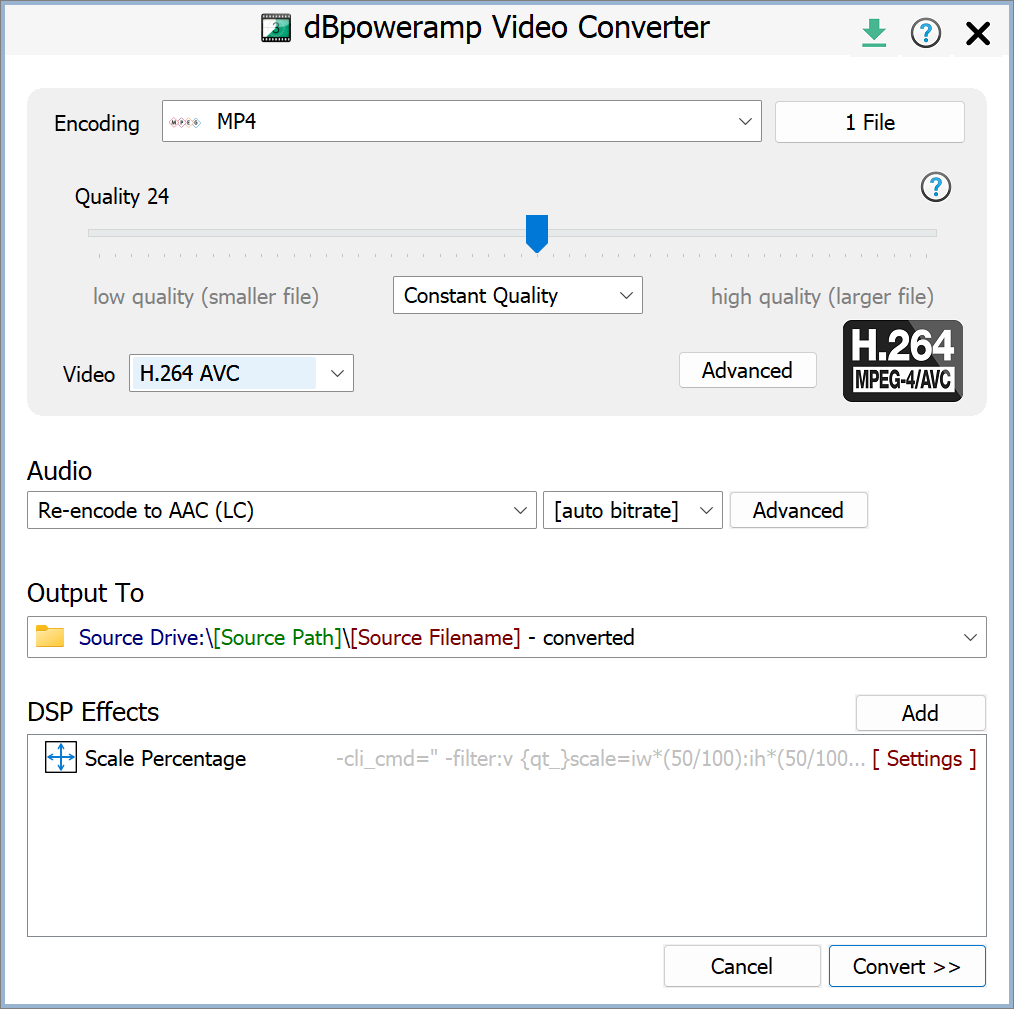
- Existing Source Folder: converted files are written to same folder as the source file,
- Single Folder: all files written to a single folder of your choosing,
- Preserve Source Path: allows the selection of a base drive or folder, into which the full source path is added and source filename,
- Edit Dynamic Naming substitutes programmable elements, such as [resolution] and replaces with real values from the files, dynamic is very flexible. Further Naming Details
DSP Effects / Actions
DSP (Digital Signal Processing) process videos, or perform actions, example effects are Delete Source File, Scale. Effects are performed in a top to bottom order. DSP Help
Converting
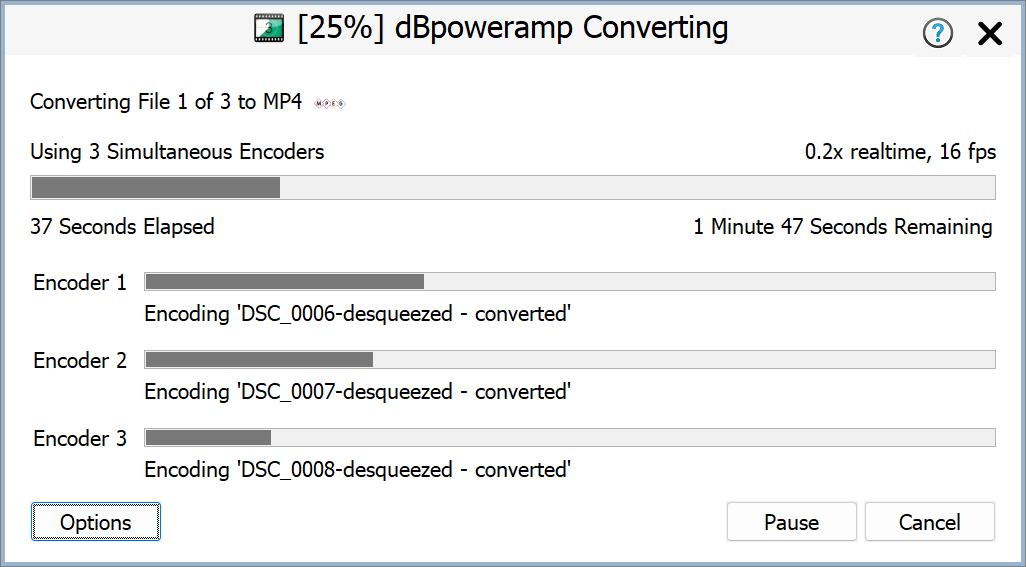
Convert >> begins conversion:
Multiple CPU cores will be used at the same time by each encoder, in the above example three encoders are running side by side.
It is possible to force usage of specific encoder count, or CPUs per encoder with the DSP Effect 'Multi-CPU Force'.
Whilst converting the number of encoders in use can be changed by selecting Options >> Encoding, this change is only for the current encoding queue.
Encoding Priority instructs how much time should be given to dBpoweramp in relation to other programs, set to Idle to allow the conversion to progress in the background and not interrupt your work. Even on a lower setting, 100% of the core is used.
After conversion there is an option to show the error log (on by default), to add a Windows notification detailing completion or to shut down the computer.
File Selector
|
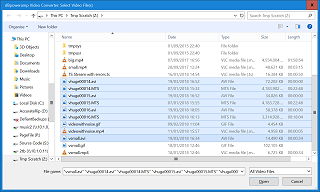
Another way to select files for conversion is with File Selector (run dBpoweramp Video Converter from Control Center) a traditional Open File selection window shows. |
|
Batch Converter
 |
Convert folders of videos effortlessly
|
Copyright © illustrate All Rights Reserved