
Asset UPnP { Help Index > Synology Specifics }
Installation
Asset is installed by loading the spk install file to your computer. Then browse to the Synology web configuration page and open Package Center:
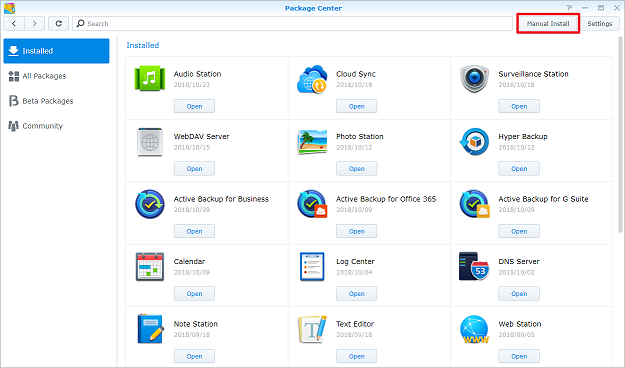
Choose Manual Install, browse to the downloaded file and install.
After Installation Asset will be running and automatically indexes the audio on your device in the Music folder.
If your music is stored in another folder than 'music', you will have to manually grant Asset access rights to the folder.
Important: if upgrading from trial to registered, restart the synology after installation.
Configuring Asset
To configure Asset settings open an Internet browser on your PC and type into the address bar:
Once your Synology is detected add :45537 to the end of the address. For example if the address is detected as 192.168.1.20, then access Asset configuration with http://192.168.1.20:45537
Adding Individual Folders to be Indexed
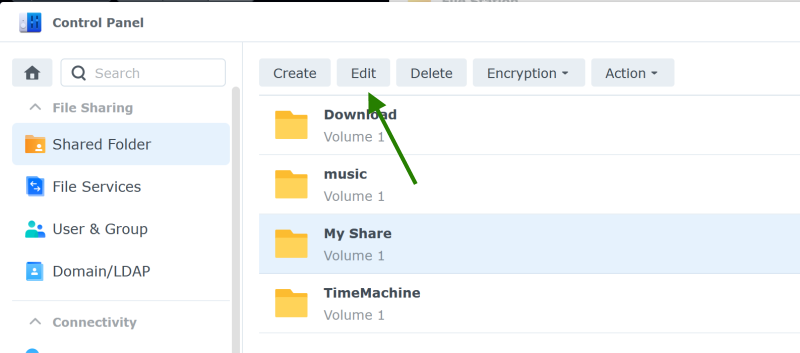
Applications must be given access to the folder on a per-application basis. To do so open Control Panel / Shared Folder, select the folder and choose Edit:
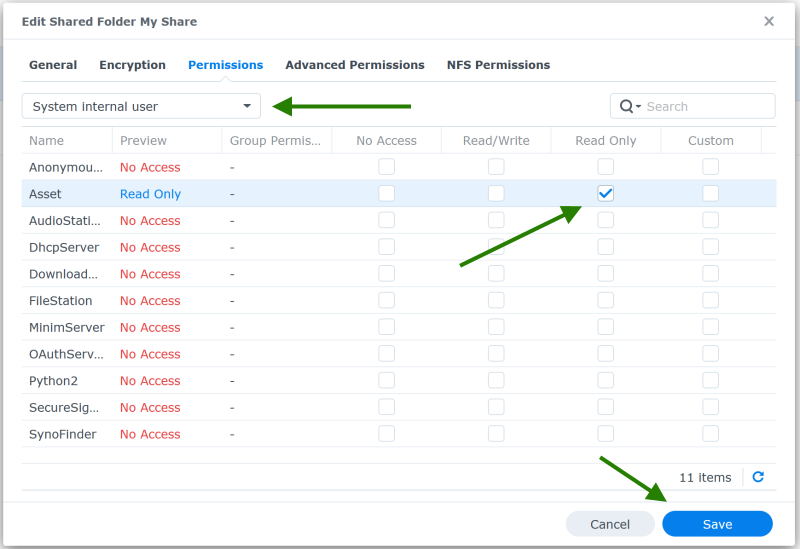
Under Permissions, select System Internal User from the drop-down list and grant Asset permissions to read your folder:
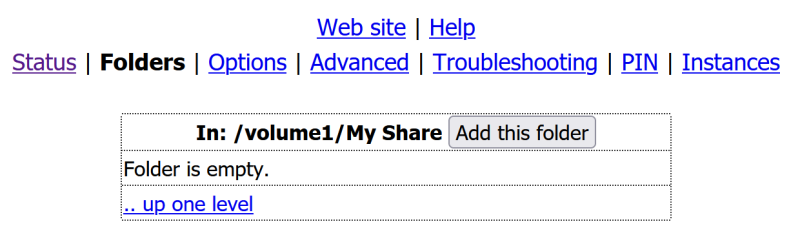
Then add this folder to Assets configuration:
Configuration Files
To find the location Asset stores the internal database (and other configuration files), enable the debug log from the configuration page, restart Asset. The location of the log is the location of the configuration files, remember to disable debugging.
http://find.synology.com