
Asset UPnP { Help Index > Customising }
To access advanced settings for Asset, visit the web-configuration page from any Internet browser. If Asset is running on the same device you are using, visit:
http://localhost:45537/
If running asset on a device other than your PC, then change localhost to the IP address of the device it is running on. For example you might have asset running on a QNAP, and its address on the local network is 192.168.1.14, it would be configured by visiting http://192.168.1.14:45537/
On QNAP there is Qfinder Pro to find the address of the NAS, for Synology use finds.synology.com
Configuration
The main configuration appears as:
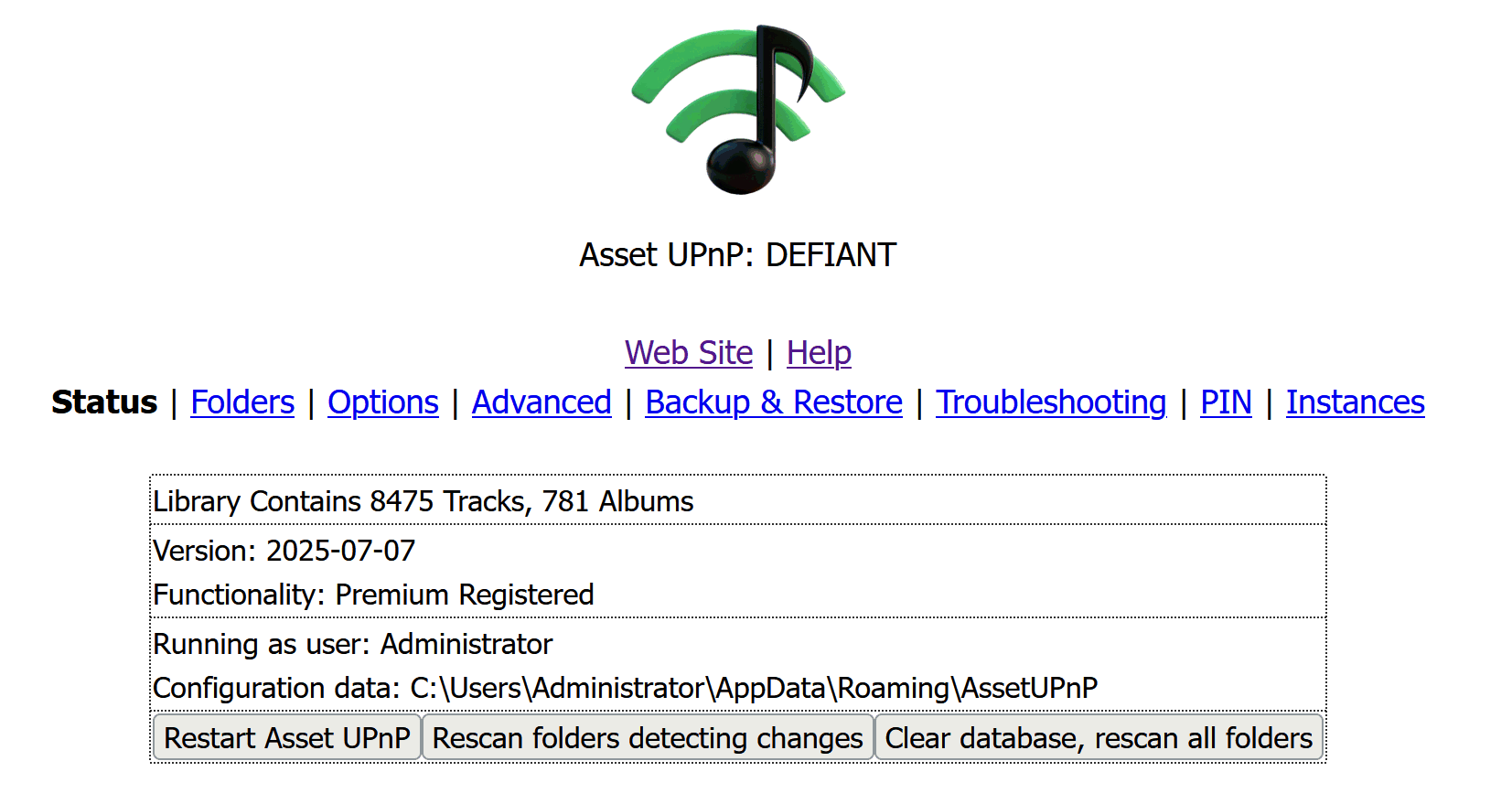
The page details how many tracks and albums are known to Asset, as well as version and registration status.
Folders
Folders allows the location of music tracks to be set.
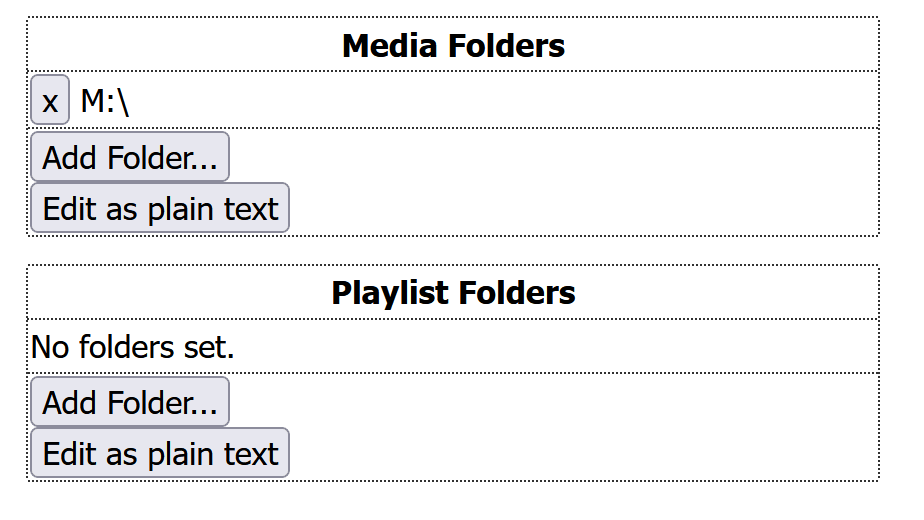
By default on many platforms the location, such as Music folder, is automatically chosen by Asset. Should your audio reside somewhere else, click Add folder, under Media Folders and browse to the location.
It should be noted that Asset required read permission of the location the music is stored.
Playlist Folders
A playlist folder can be added containing m3u, m3u8 and pls playlists. It should be noted that the playlist should contain a full network path to the item if stored remotely.
Options
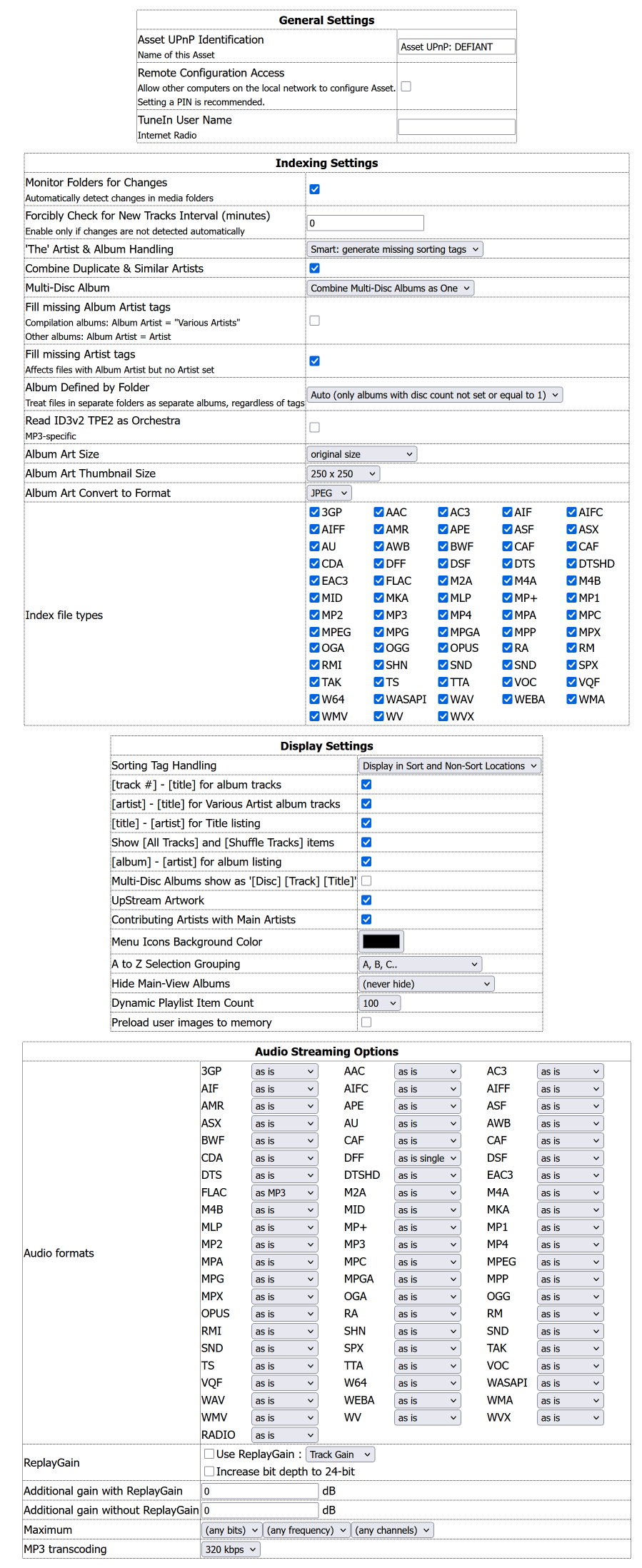
KT Tunstall / K T Tunstall, Black Eyed Peas / The Black Eyed Peas
|
 |
Advanced
Control Point Override
Allows to set a set of rules mainly to do with browsing, but also audio format specific, these rules are triggered by a known control point name. This is an advanced option and should not be edited lightly.
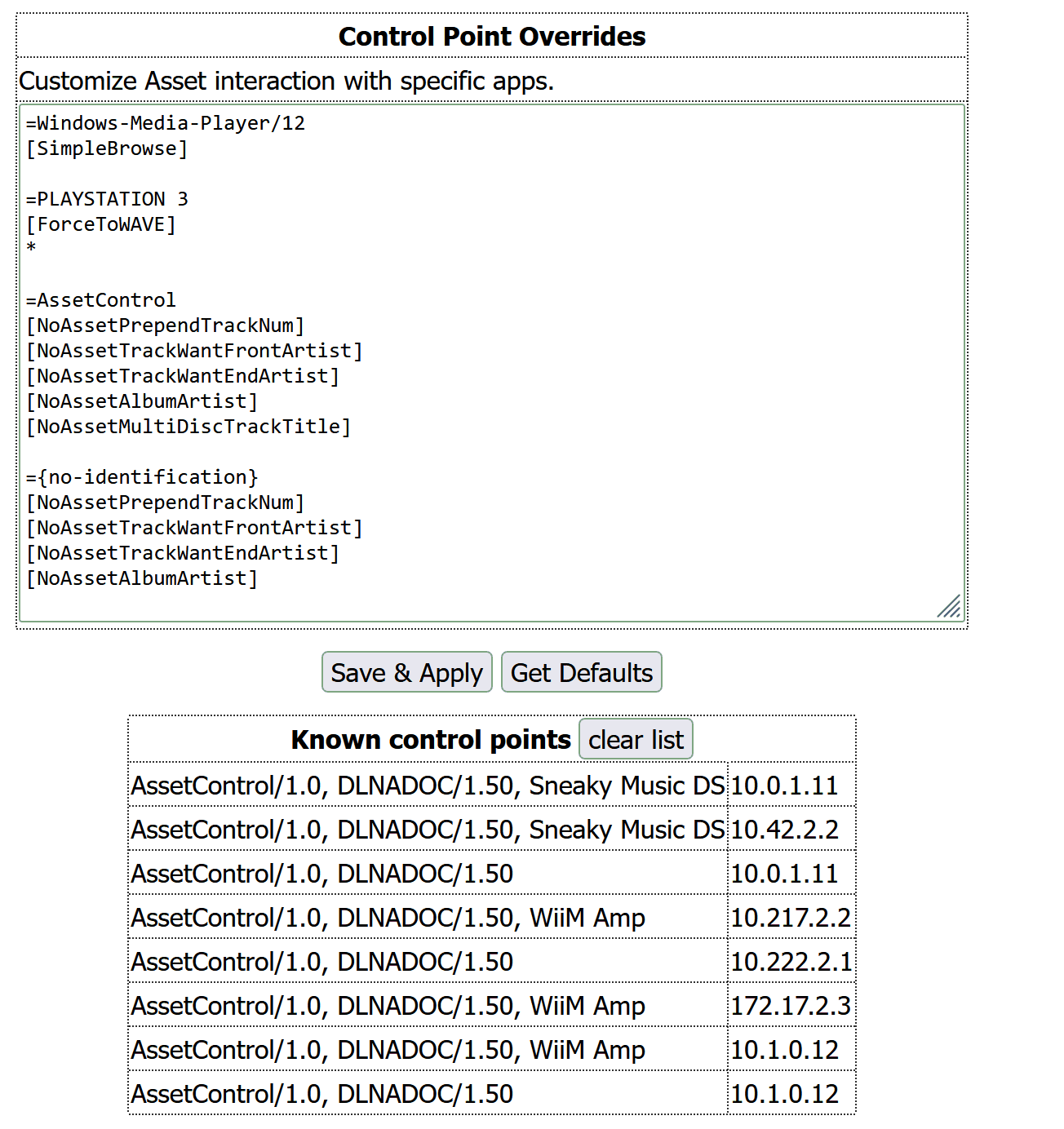
A list of rules are edited, they are in sections each starting with =, the list is searched looking for a match for a known control point name. Partial names can be supplied, for example to set rules based for the iPad, you could set =iPad
The rules themselves can be:
Editing Browse Tree
The browse tree can be customised, adding new items to the list, or removing existing items to suit. If a tag is not indexed by Asset (click the edit database fields item to see which tags are indexed), a new value can be added, then the tag value can be added to the browse tree to browse by that item.
Added tree items can be given to option A to Z which allows the selection of A to Z before choosing the item, ideal for items with thousands of items, such as Artists. Also a track listing option, signifies to list the tracks after the selection of said item.
A special root item can be added as a child of an item, which takes the browse back the to the first root tree, for example select an artist then to root to choose other items.
Restore Default allows the restoration of the Browse Tree to default settings.
It is possible to create a browse tree item which automatically descends into the defined tree items, think of it as an auto selector. For example if a new browse tree item is created as:
1980s Pop##Dynamic Browsing&+&Genre&+&Pop&+&Year&+& 1980s
Would appear in the tree as '1980s Pop', which when selected automatically descends into Dynamic Browsing >> Genre >> Pop >> Year >> 1980s. Note the ' 1980s' space at the front, Asset adds this so the decades appear above 1981,1982, etc when sorted. The items entered have to match exactly the values shown in the browse tree.
Finally adding [TOROOT] to the end of the defined tree name, allows browsing to continue at the root for futher selection:
1980s Pop##Dynamic Browsing&+&Genre&+&Pop&+&Year&+& 1980s[TOROOT]
[ForceAlbumArt=200] to force 200 pixel album art
[StreamMax16Bit] sets the maximum bits for streaming to 16
[StreamMax2Channels] sets the maximum channels for streaming to 2
[StreamMax48KHz] sets the maximum frequency for streaming to 48KHz
[SimpleBrowse] is used to give a very simple browse tree (just tracks), this is used on control points such as XBox which only need to catalog all tracks as quickly as possible.
[NoAssetPrependTrackNum] see [track #] - [title] for album tracks
[NoAssetTrackWantFrontArtist] see [artist] - [title] for Various Artist album tracks
[NoAssetTrackWantEndArtist] see [title] - [artist] for Title Listing
[NoAssetAlbumArtist] see [album] - [artist] for album listings
[NoAssetMultiDiscTrackTitle] see Multi-Disc Albums show as '[Disc] [Track] [Title]'
[NoAllTracksItems] stops the listing of [All Tracks] in album listings
[SimpleArtist] to not supply composer, conductor or album artist (only artist) for track details to player
[ForceToWAVE] [ForceToMP3] [ForceToLPCM] [ForceToSINGLE] these three options force the streaming (transcoding), after setting this option follow with a list of extensions ';' delimitated, finalising with a blank line, for example:
[ForceToLPCM]
.mp3;.flac
A * can be used to signify all extensions, single extensions can be excluded with [NoForce] (see the =Xbox example in the picture, all formats except mp3 are forced to LPCM streaming).
See 'as is single' above for details on [ForceToSINGLE]
={no-identification} is a special identifier, for control points that do not match any other present rule set.
[StreamMax16Bit] sets the maximum bits for streaming to 16
[StreamMax2Channels] sets the maximum channels for streaming to 2
[StreamMax48KHz] sets the maximum frequency for streaming to 48KHz
[SimpleBrowse] is used to give a very simple browse tree (just tracks), this is used on control points such as XBox which only need to catalog all tracks as quickly as possible.
[NoAssetPrependTrackNum] see [track #] - [title] for album tracks
[NoAssetTrackWantFrontArtist] see [artist] - [title] for Various Artist album tracks
[NoAssetTrackWantEndArtist] see [title] - [artist] for Title Listing
[NoAssetAlbumArtist] see [album] - [artist] for album listings
[NoAssetMultiDiscTrackTitle] see Multi-Disc Albums show as '[Disc] [Track] [Title]'
[NoAllTracksItems] stops the listing of [All Tracks] in album listings
[SimpleArtist] to not supply composer, conductor or album artist (only artist) for track details to player
.mp3;.flac
Backup & Restore
Copies all the configuration settings, which could be restored to a new machine. It is not recommended to move settings between different platforms.
Troubleshooting
To be used if requested to create debug logs by ourselves.
PIN
A code can be set which is required to accept any configuration changes, important if the network is shared with others who might change the settings.
Instances
By default one instance of Asset is defined, each defined Asset can be thought as a separate server, each with their own settings or music library. It is possible for example to have a Christmas Asset indexing just festive tracks, this instance of Asset can be disabled once Christmas has passed.