dBpoweramp Windows / macOS Integration
dBpoweramp integrates with Windows and macOS in various ways.
Popup Information Tips [Windows only]
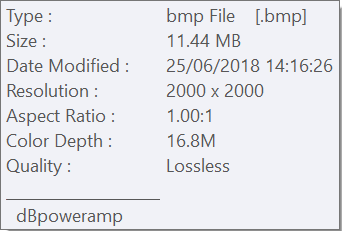
Hold the mouse over a supported image file and dBpoweramp supplies details, if the file contains EXIF tags a selection will be shown also, it is possible to define which tags are shown through Configuration >> Advanced >> Popup Information Tags 'Advanced' :
Windows Context Menu
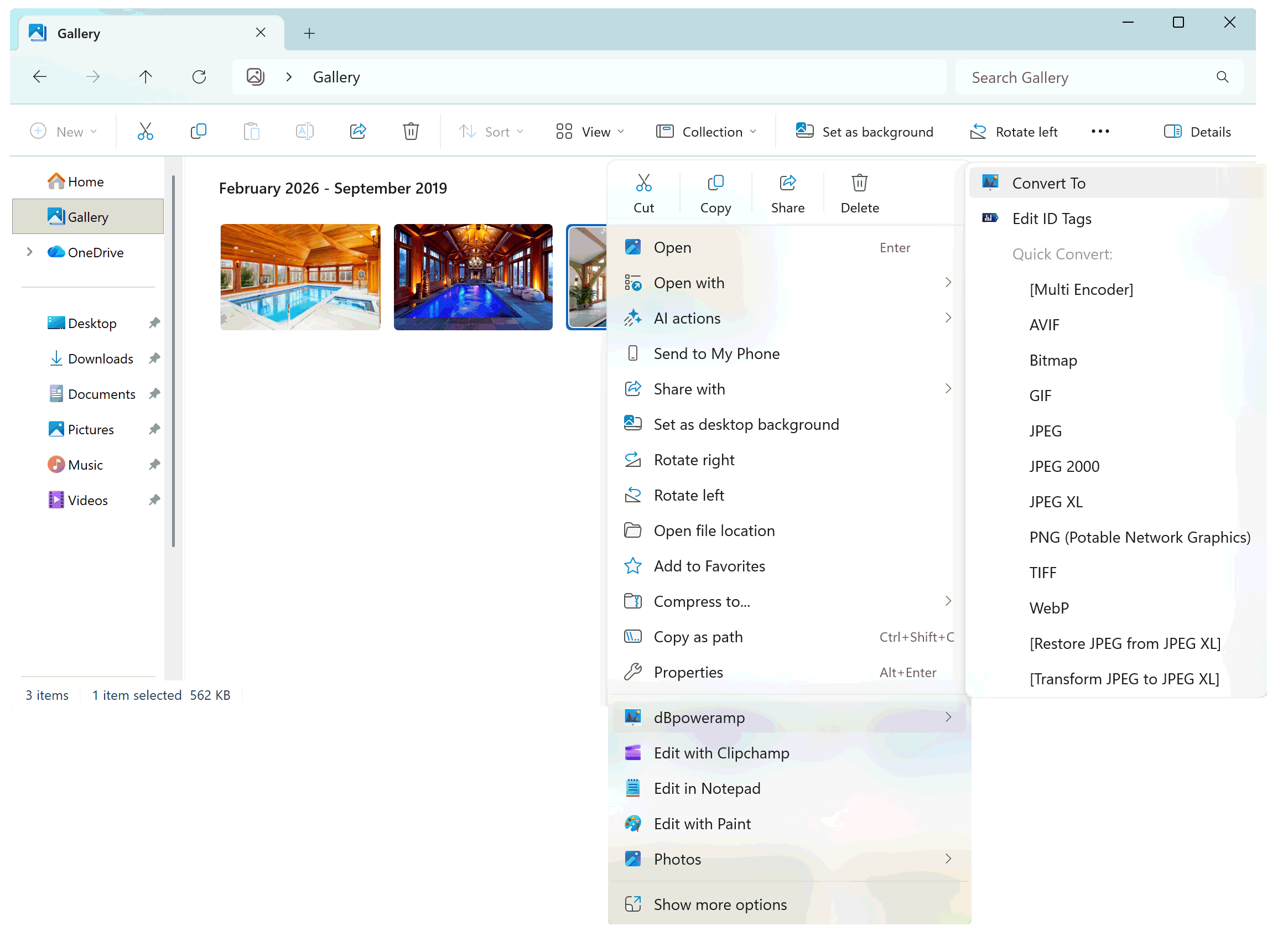
On the right click menu for image files dBpoweramp adds dBpoweramp >> Convert To to invoke Image Converter:
In addition is the option dBpoweramp >> Edit EXIF Tags which invokes a EXIF tag editor.
A Quick Convert option (enable in Control Center >> Advanced Settings), allows the conversion to run without previewing settings, last settings are used.
There is also an option for adding Batch Convert to folders, so they can be right clicked and invoke the Batch Converter with all image files in said folder included.
macOS Context Menu
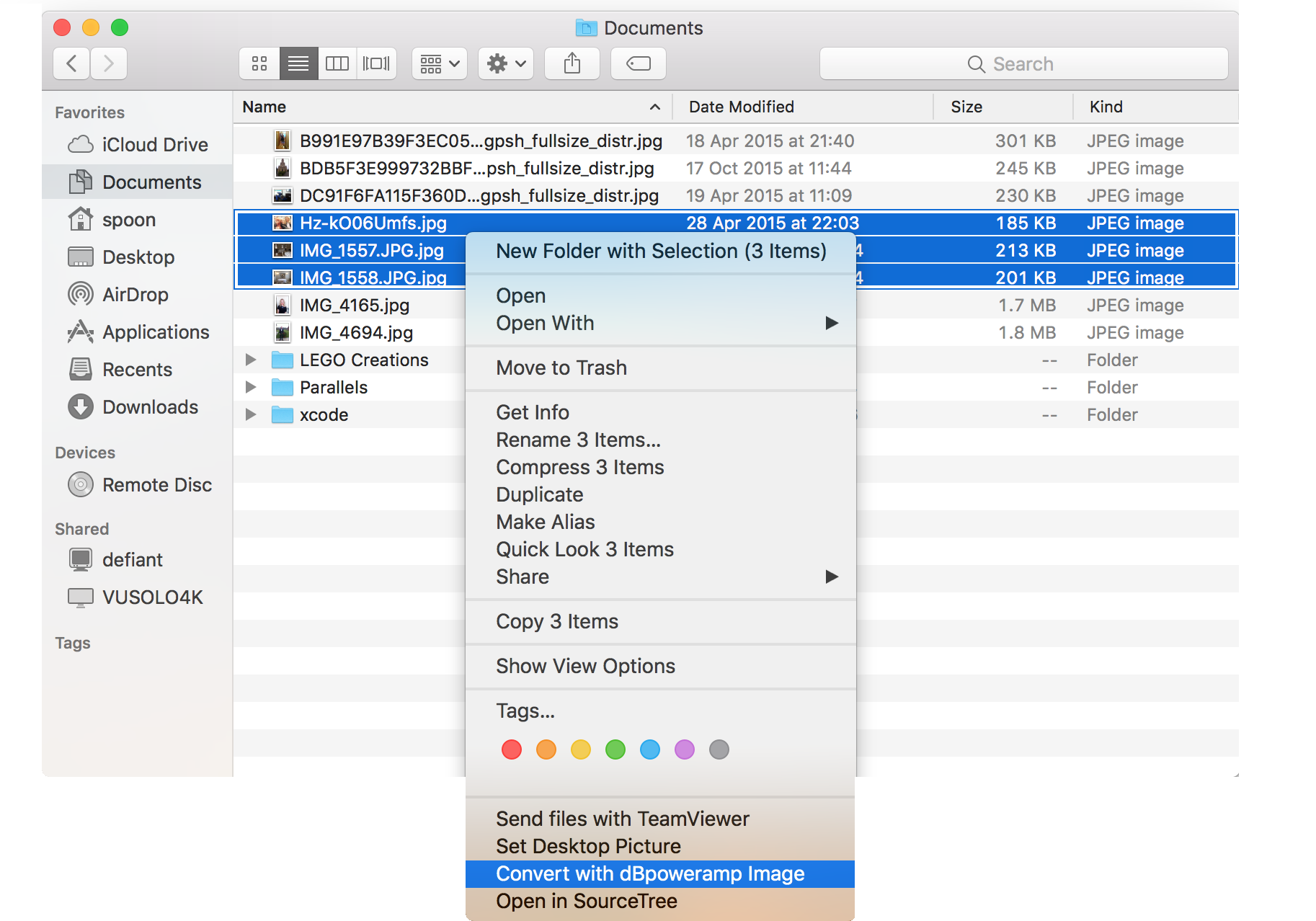
For macOS Finder, right clicking on an image allows Convert with dBpoweramp Image to invoke Image Converter:
In addition is the option View & Edit info with dBpoweramp Image which invokes a EXIF tag editor. Also at the top of the tag editor is an Info tab, which will show details about the image, such as resolution, color count, etc.