
dBpoweramp Control Center
Control Center is the first stop for launching the various dBpoweramp programs, checking for updates, or accessing options:
Also files and folders can be dropped directly onto this dialog and the converter or batch converter will open automatically.
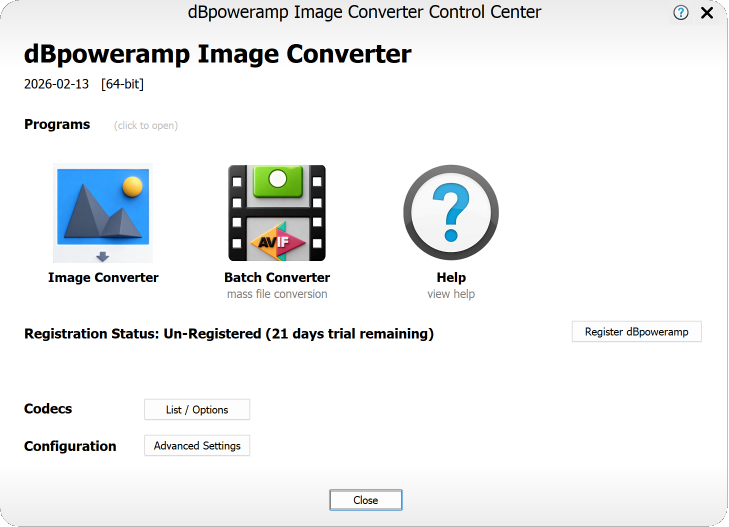
Codecs: List / Options
Lists all formats supported installed within dBpoweramp Image Converter.
Configuration: Advanced Settings
Allows for fine tuning of options within Image converter.
Windows Explorer Integration [Windows Only]
General Options
When Converting
Screen Reader Compatible [Windows Only]
Options specific to integration within Windows Explorer, such as popup info tips, right click menus.
Dark Mode [Windows Only] allows dark mode to be overridden from the system wide setting.
Enable Profiles in Converter when checked places a menu item [Create New Profile] into the 'Encoding' selection menu within the Image Converter Menu, to create a profile based on the current encoder.
This allows encoder settings and DSP effects to be saved when the same encoder is used with different settings commonly.
Filename Restricted Characters allows converter to set characters allowed in filenames, the default entries should be kept as these characters are forbidden in any filenames.
Preserve EXIF Tags by default EXIF tags are preserved when converting, if the destination format is compatible.
Hidden Encoders allows unused encoders to be hidden from the encoding menu, simplifying selection.
Image Converter Debug a debug log file, which is useful in finding issues when something is not working correctly. When enabled after a conversion or a crash a log file is automatically shown.
This option stops dBpoweramp from showing graphical buttons, instead text only buttons are created which can be read by screen readers for visually impared.
Copyright © illustrate All Rights Reserved