
dBpoweramp Batch Image Converter
Batch Image Converter facilitates converting large numbers of files, be them in folders and sub-folders, with 1 click.
It is also possible to selectively convert just one video type with the filter button.
Drag and drop a folder or file from Windows explorer to auto select that item in Batch Converter.
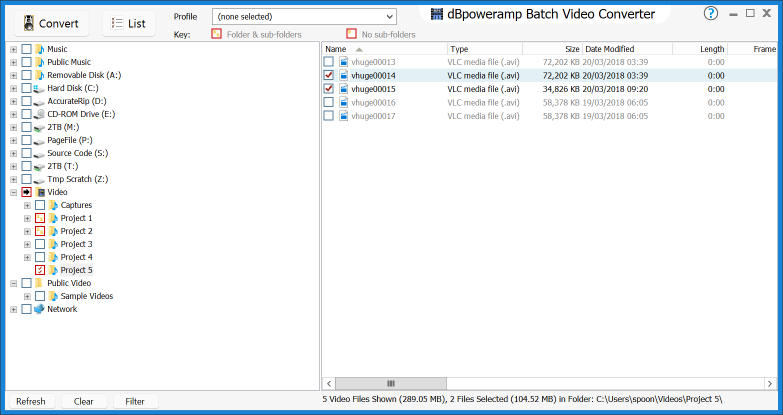
Converting Folders
Click once on the square box next to a folder, this selects all files and all subfolders for conversion:
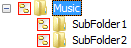
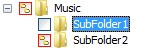
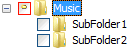
Preserving Folder Layout
On Image Converter options page click 'Output To' drop box, choose Existing Source Path to place the new files in the same location as the source files, or choose 'Preserve Source Path' to place the files in a new location, which the folder layout preserved in this new location. See Naming Details
Excluding Image Types
It is possible to exclude image types, by clicking the Filter button. Only images with a check mark are converted.
Profiles
If a profile is created, or select a previous profile: all selections are automatically saved to that profile, this also includes all entries under 'Filter' and settings made later in Image Converter. When creating a new profile there is an option as to whether file selections should be remembered for that profile.
If a profile is created, or select a previous profile: all selections are automatically saved to that profile, this also includes all entries under 'Filter' and settings made later in Image Converter. When creating a new profile there is an option as to whether file selections should be remembered for that profile.