illustrate
Products            Buy            Support Forum            Registrations            About           
 

dBpoweramp Music Converter        { Help Index   >   DSP Effects }

DSP (or Digital Signal Processing) Effects fall into two main categories:
  • Manipulate audio data, such as Graphic Equalizer,

  • Perform an action, such as ID Tag Processing.
Each effect can be live or non-live, where non-live effects require that the entire audio track be decoded to a temporary wave file before the effect is used, after compression begins.

dBpoweramp Reference is required for DSP effects to function.

Effects are processed in the order they appear, for example:

Bit Depth (to floating point)
Resample from 192KHz to 44.1KHz
Volume Normalize (Peak to Peak) to 0dB Desired
Bit Depth (to 16 bit with dither)

The Volume Normalize (peak to peak) would declip any samples which are clipping and scale the whole audio file down to prevent clipping, this can only be done whilst the Bit Depth is in Floating Point.


DSP Effects

Audio CD - De-emphasis Apply de-emphasis to CD tracks with pre-emphasis
Audio CD - Hidden Track Silence Removal Remove mid-track silence
Audio CD - Remove Gaps CD Index positions are used to remove inter-track gaps when ripping
Audio CD - Silence Track Deletion Remove silence tracks from Audio CD
Bandpass Filters frequencies above and below the specified frequencies
Bit Depth Set sample bit depth (example 24 bit to 16 bit)
Channel Count Increase or decrease channels
Channel Mapper Move or combine channels
Conditional Encoding Allows files to be skipped, or copied 1:1 based on attributes
CPU Throttle Slows encoding
Delete Destination File on Error Converted To file deleted if errors during conversion
Delete Source File Remove Converted From file after conversion
DirectX PlugIn DirectX Effects in dBpoweramp [Windows Only]
Dynamic Range Compression Level-out large changes in audio level
Fade Fade in or out to silence
Folder.jpg Preserve folder.jpg or associated files copied to destination folder
Force Non-Live Forces live effects to be processed non-live
Grabber Takes a portion of audio from a larger file
Graphic Equalizer Boost or reduce frequencies
HDCD Decode HDCD Audio CDs
Highpass Filters all frequencies below the specified frequency
ID Tag Processing Manipulate ID Tags
Insert Audio Inserts audio into the stream
Karaoke Remove voice or instruments
Loop Repeat the whole track a number of times
Lowpass Filters all frequencies above the specified frequency
Maximum / Minimum Length Increase or decrease length
Move destination File on Error Move converted files with errors to a different location
Multi-CPU Force Forces the use of certain CPU cores
Playlist Writer Creates a playlist file containing the conversion / ripping contents
Play Sound After Conversion Informs audibly when a conversion has completed
Preserve Source Attributes Preserve date & time, etc
Read Metadata File Read metadata from xml files
ReplayGain Calculate Replay Gain, or EBU R128 volume adjustment (written to ID Tags)
ReplayGain (Apply) Apply Replay Gain adjustment to converted file
Resample Change Sample Rate Frequency
Reverse Backwards audio!
Run External Allow external programs to access converted files
Speed Up, Slow Down Slows or speeds up the audio without effecting pitch
Trim Silence Remove silence from beginning or end
Trim Remove fixed length from beginning or end
Volume Normalize Adjust volume in many different ways
VST Plugin Utilise Steinberg's VST effects whilst converting
Write Metadata File Exports metadata to XML or HTML
Write Silence Insert silence


Effects in Detail


    Audio CD - De-emphasis

Certain early Audio CDs were mastered with Pre-emphasis, that is the frequencies of the audio CD were boosted so that on CD playback the signal can be de-emphasised.

There is no need to include this DSP in CD Ripper, it is added automatically if a CD reports it has pre-emphasis in the TOC. For certain CDs only Pre-emphasis is signalled in the sub-codes, for those rare CDs this effect could be added manually to apply.


    Audio CD - Hidden Track Silence Removal

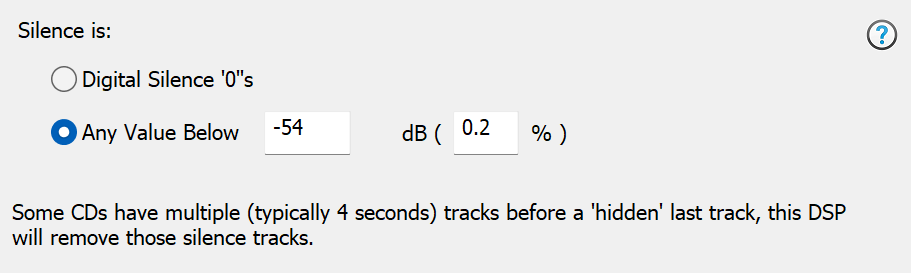
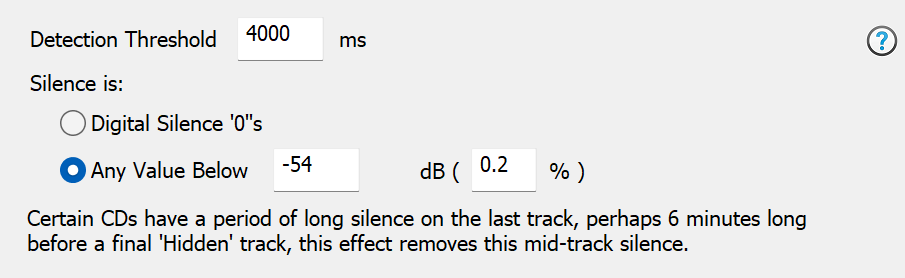
Audio CDs can have a 'hidden' last track which is really the last track with a long period of silence before the hidden track.


This effect removes the silence period, set the Detection Threshold large enough to ignore periods of silence normal tracks might contain.


    Audio CD - Remove Gaps

Uses index information as supplied by CD ripper to remove inter track gaps. This effect can only be used when ripping CDs.

Note if ripping a gapless CD, there is no need for this effect, there would be no gaps to remove. This effect only removes the introduced 2 second delay between tracks. Standard practice is to leave the gap and on playback it sounds better.


    Audio CD - Silence Track Deletion


Certain Audio CDs have a 'hidden' last track which is proceeded by many small silence tracks, this effect detects and removes those tracks which as silence.


    Bit Depth

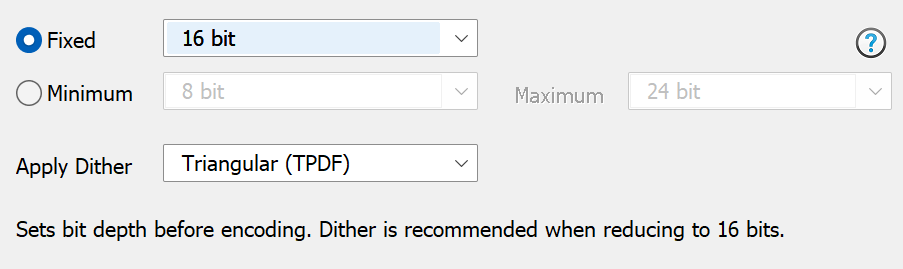
Bit Depth can be used on one of two ways, to force a set bit depth (for example the source audio file is 24 bit, and reduce to 16 bit). Or to increase bit depth to 32 bit (floating point), process other DSP effects (such as Graphic Equalizer), then set the depth back down to 16 bit, by including Bit Depth twice, first and last.


32 bit floating point allows the value of the audio signal to go over the clipping level (+-1.0), certain effects such as Graphic Equalizer can introduce increases over the maximum, before reducing to 16 or 24 bit, include Volume Normalize set to Peak to Peak.

Apply Dither can be used to dither when reducing the bit depth, such as after volume normalizing (at 32 bit floating point), dither in the final stage to 16 bit. Triangular dither is the preferred option.


    Channel Count

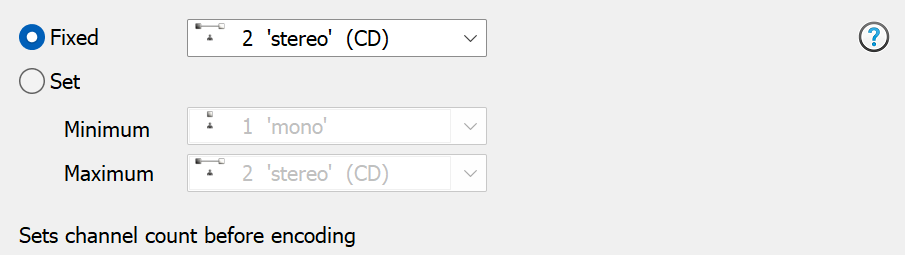
Forces a channel count, or set allowed minimum and maximum channel counts as supported by a player.


    Channel Mapper

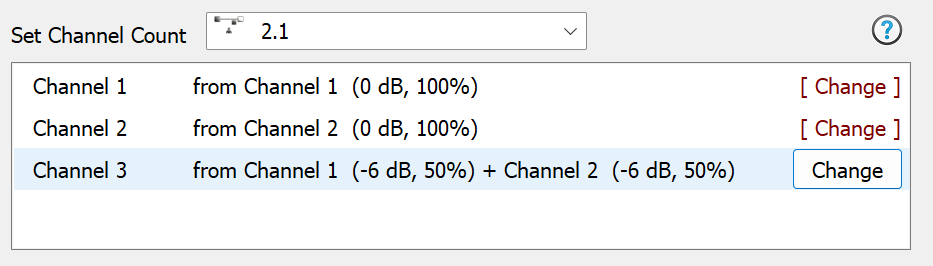
Channel Mapper sets a desired number of channels, each channel can be edited, choosing which source channel(s) it is made up from.


In the above example Channel 1 and 2 are left untouched, and channel 3 is created from the sum of channel 1 reduced by 50% and channel 2 reduced also.


    Conditional Encoding

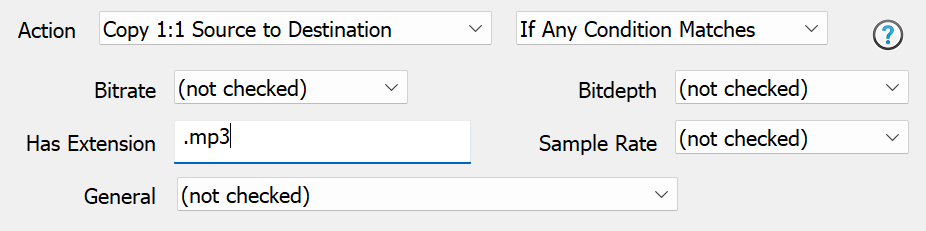
Conditional encoding allows Music Converter to either skip certain files, or copy them 1:1 to the destination location, if attributes of the source file match any of the specified values (Bitrate, Bitdepth, Sample Rate, Extension or General).


It is possible to use multiple Conditional Encodings together, for example, one to skip all files where the destination exists and a 2nd effect to copy 1:1 any .mp3 files.


    CPU Throttle

Slows Encoding Speed, based on simulated speeds. For example, x2 will encode a track that is 60 seconds long in 30 seconds.

This effect can reduce the load on CPU usage (and therefore heat generated), the exact CPU reduction depends on the normal unrestricted CPU usage when encoding. A codec encodes normally at x24, if setting this to x12 then only half the CPU resource would be used when encoding.


    Delete Destination File on Error

If there were errors during conversion, such as decoding a corrupted lossless file, the converted to file is deleted.

It is also possible to configure CD Ripper (Secure Ripper) to mark a Track as Error if the rip was not secure, in such case the file would be deleted by this DSP effect.


    Delete Source File

Allows the source file (converting from file) to be removed after a successful conversion, typically this is used when converting lossless to lossless (with limited disk space).

It is worth testing the converted files using a small number of files before using this effect. When converting a batch of files, deletions occur after each file is converted.

Remove Empty Folders if checked will remove empty folders, including empty parent folders.


    DirectX PlugIn

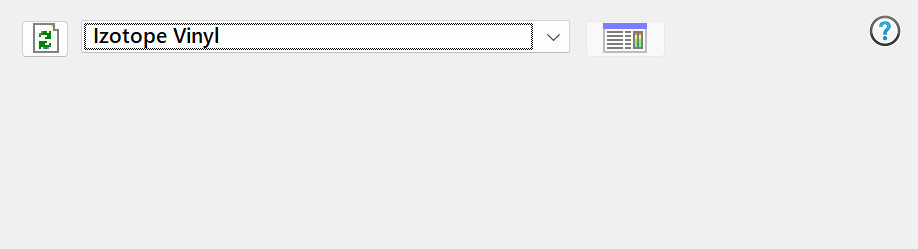
Allows DirectX effects to be used whilst converting. When first run the effects on the system must be scanned to find compatible effects, if at a later date new effects are added press the green refresh button to rescan.


Select effect required from the drop box and press settings button to show options for selected effect. Note only the selected effect is used. Note also that Sony effects are designed not to function outside of their own software.


    Dynamic Range Compression

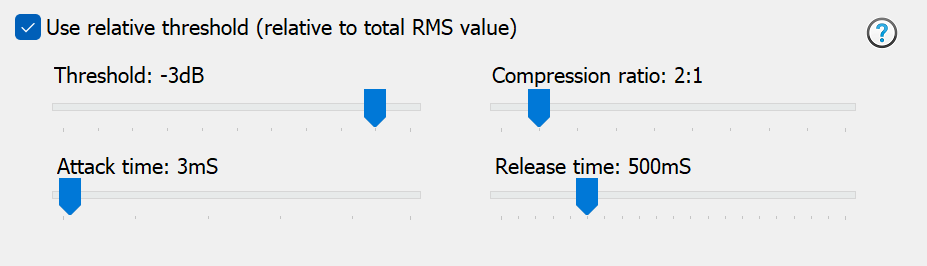
Compresses dynamic range to level-out large changes in audio level and render a "tighter" sound. This DSP is a so-called "hard-knee compressor" and can be used to reduce the effects of over-produced jingles or adverts in combination with under-produced speech (e.g. in Podcasts).


A relative threshold can be applied which makes the threshold level, at which the compressor starts working, relative to the file's overall RMS value. When using a relative threshold, the threshold value should be in the range -1 to -6dB for the best results.

When using a fixed threshold (i.e. not relative), the value could be quite a bit lower (in the range -3dB to -30dB) depending on audio content.

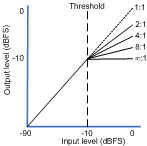
Compression ratio determines how much gain reduction will be applied above the threshold level.


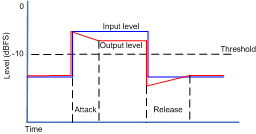
Attack time is the time taken to respond to audio level increases above a set threshold level. If this is value is too high, the compressor will let through transient peaks of audio. A short attack time is recommended.

Release time is the time taken to reduce gain (or recover) after an decrease in audio level below the set threshold level. A too short release time could give undesirable pumping effects. It is better to use quite a high value for this ( > 500 mS).


    Fade

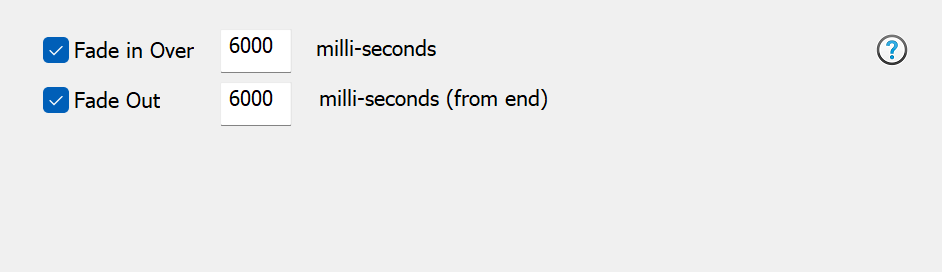
Fades in, or / and Fade Out, to silence, over specified time.


6000 milli-seconds is 6 seconds.


    Folder.jpg Preserve

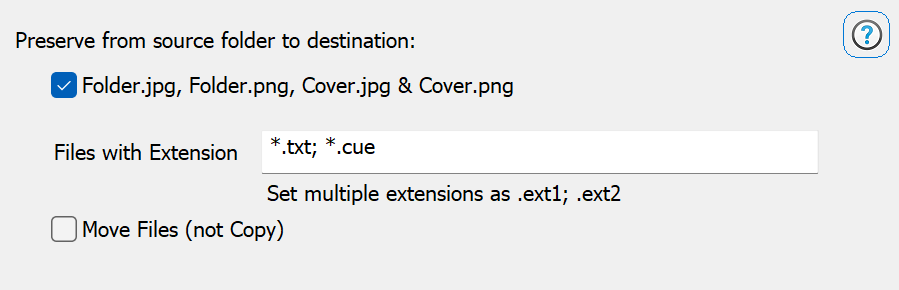
Copies folder.jpg, and other specified files to the destination folder when converting.

In the above example .txt and .cue  files with these extensions found where the source file resides would be copied. It is also possible to give a fixed filename, such as log.txt.

The option to Move Files can be used in conjunction with the Delete Source DSP effect to remove all source files. When moving test on a small subset of files before letting loose on your whole collection.


    Force Non-Live

Forces all other DSP effects to be processed in a non-live manner. Non live DSP processing is done using a temporary file, firstly the whole source file is decoded, DSP effects run on temp file before encoding.

This effect is useful for example if using [Length Split] utility codec, or any live DSP which requires the file length. A normally live effect such as 'Fade' does not know the exact file length cannot be known at the start if using those mentioned other effects, so forcing fade to non-live would allow it to function normally with [Length Split].


    Grabber

The purpose of Grabber is to extract a subset of audio from a larger file.


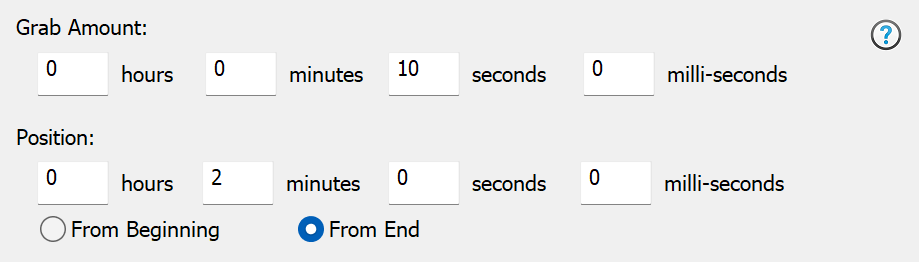
Grab Amount sets the amount to be grabbed, starting at Position either from the beginning or end. In the above example 10 seconds of audio is grabbed 2 minutes from the end.


    Graphic Equalizer

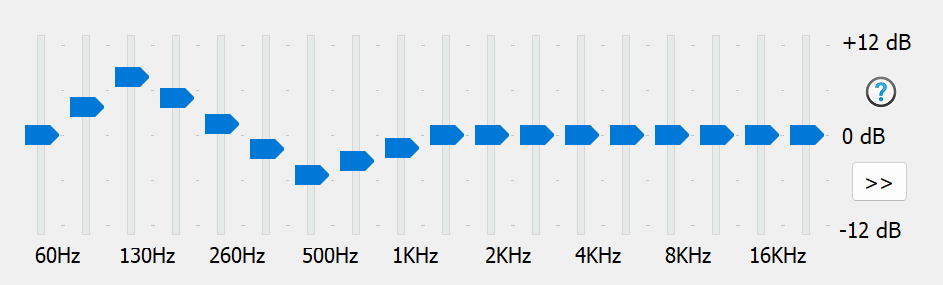
Graphic Equalizer boosts or reduces selected frequencies. 0 dB leaves the frequency untouched, +12 dB increases the amplitude at that frequency by four and -12 dB is divide by four.


Care must be taken when increasing frequencies as clipping can occur (where the signal goes over maximum allowed), if possible reduce other frequencies, leaving the frequency to boost at 0 dB.

>> Offers a menu to Load, Save and select Preset values. Also is the option to adjust single bars, instead of moving neighbour bars also.


    HDCD

Auto detects HDCDs (20 bit High Definition Audio CDs) and decodes to 24 bit (only first 20 bits are used). It is safe to use this effect for non-HDCD Audio CDs (audio is left as 16 bit).

There is an option to align the 20 bit result in the upper 24 bits (apply +6dB amplification), however it is best to leave unchecked and use actual volume normalize to match the audio levels with ripped CDs, or ReplayGain if have a compatible player.


    ID Tag Processing

ID Tag Processing can perform actions on ID Tags / Album Art whilst converting, ensuring best compatibility with players or the new format.


ID Tags can be manipulated by:

Map

Copies a tag to another name, for example map Artist to Album Artist. The original tag is kept, use Deletion if needs removing.


Deletions

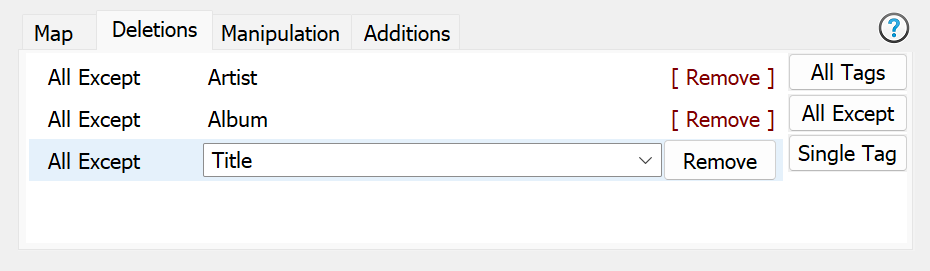
Remove All Tags, All Except, or delete a Single Tag value. In the example all ID Tags are removed except the 3 listed.


Manipulation

Capitalization: when using meta data sources such as freedb there is little consistency between discs, this option allows character capitalization to be set. The Smart Capitalization option would create a tag 'A tag and Another' from 'A TAG AND ANOTHER'.

Import & Export Album Art to / from files.

Specify a Maximum Art Size (pixel or KB size).

Force embedded Album Art to JPG  art could be PNG which certain players do not support.

Rule Based Manipulation  offers advanced programmable actions, such as:

IF Genre=[anyvalue]set if Genre if contains a value
SET Genre=Rock

IF Genre=set genre if contains nothing
SET Genre=Unknown

IF Genre=Alt Rockgenre matches Alt Rock, set to Rock
SET Genre=Rock

IF Album=Christmasexample showing setting a different tag
SET Genre=Christmas

IFCONTAINS Album=Best offor generic albums, add the artist name
SET Album=[album], [artist]

IF Album Artist=set album artist if empty (from artist)
SET Album Artist=[artist]

IF Artist=if no artist then set to unknown
SET Artist=Unknown Artist


Word / Character Replacement allows individual characters or whole words to be substituted with another character or word, or to be deleted when no substitution is specified.

Externally Script Tags runs an external script to alter ID Tags see full scripting details

Multiple Artist To 'Artist1; Artist2'  dBpoweramp follows standards set by tagging formats when it comes to handling multiple artists, each tag type is different. Problems arise when another programs do not follow these standards, a program might not read the 2nd Artist when stored in a multi artist tag. This option forces all artists into one artist, separated by '; '. Be aware, programs which follow the tagging conventions correctly will not detect 2 separate artists.

Multiple Artist From 'Artist; Artist2' does the opposite of above.

Remove Month & Day from Year takes a 1990 12 30 date and shortens to 1990.

Drop Track Count removes the count from a track number, example 4/12 becomes 4.

Drop Disc Count removes the count from a disc number, example 1/2 becomes 1.

CRC32 and MD5 can be calculated for the audio and embedded in the ID tags, note ID Tag Processing should be the last DSP effect, other effects might change the audio.



Additions

Add new tags, for example it is possible to add a Comment set to (c) Your Company.


The order of manipulations carried out are: Map, Deletions, Manipulation finally Additions.


    Insert Audio

Inserts an audio file, any format which is supported by dBpoweramp to either the front or end of a converted file.


    Karaoke (Voice, Instrument Removal)

Either voice or instruments (leaving the voice) can be removed from an audio piece. The effect requires a stereo audio file, where the singer was mastered into the centre of the two speakers, not all audio tracks are like this.

Even then there will still be a small amount of instrument or voice in the background.


    Loop

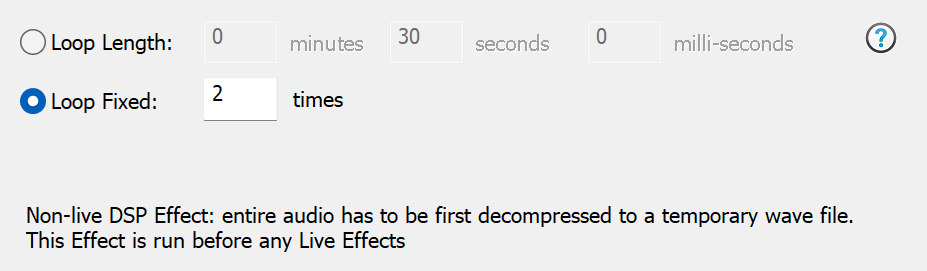
The whole track can be repeated a number of fixed times, or to a set length by looping if shorter.


Loop is a non-live DSP effect (a temporary wave file is used).


    Lowpass / Bandpass Filter / Highpass

Applies a filter to the specified frequencies. For Bandpass frequencies below and above the specified frequencies are filtered.

Highpass, filters all frequencies below the set value and lowpass filters all frequencies above.

This filter is not a hard cut off filter, it is applied gradually affecting frequencies around the specified point.

An example usage of this filter is with the DSD decoder codec, where it might be decoded to 176KHz, a 40KHz lowpass filter can be applied to remove all harmful ultrasonics from DSD.


    Maximum / Minimum Length

Maximum Length, if the audio file is longer than the length set, it is truncated. If the audio file is has a less length than the maximum specified, it is left at the original length.

It is also possible to limit the length based on a percentage of the original length.

Minimum Length increases an audio file to the minimum length set, silence is used to increase the file. If the file is longer than the minimum length it is left at its original length. This effect is a non-live DSP Effect.


    Move Destination File on Error

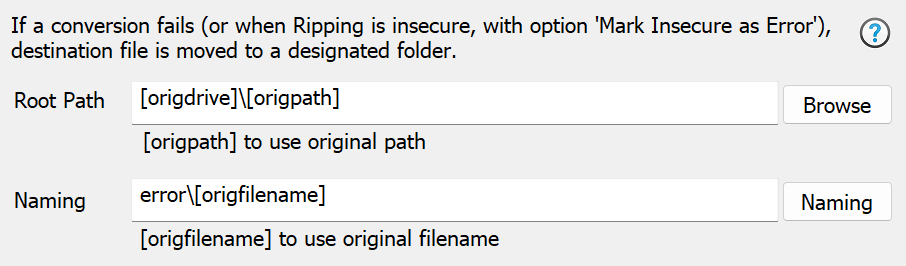
It is possible to separate files with conversion errors. The specific applications of this DSP effect are:
  • Secure ripping to separate insecure files (when used with the secure option in CD Ripper to Mark Track as Error if Insecure)

  • If there is a possibility the source file is corrupted (perhaps a lossless file).


A Root path is set (could be the same location as the original file) or a fixed location. Naming again can include the original filename, or can be constructed from ID Tag elements such as [artist] - [title].


    Multi-CPU Force

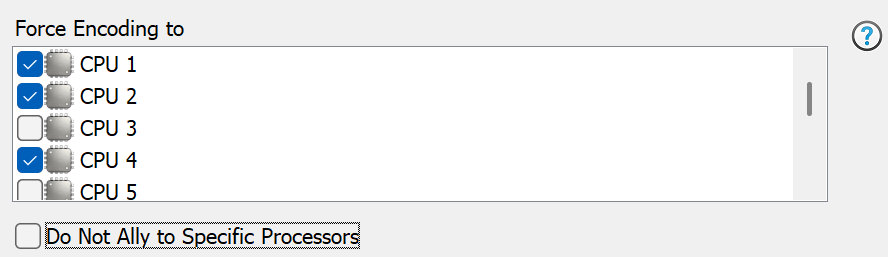
By default Music Converter / CD Ripper will encode using the maximum number of CPUs available, unless an audio format has a high disk I/O usage (such as wave), in which case only 4 CPUs are used.


This effect can override the automatic choosing of CPU and allow perhaps just CPU2 to be used.

Do Not Ally to Processor allows the encoder to jump between CPUs (if only 2 CPUs are chosen then it will still only use 2 encoders but any cores). All CPUs are shown even on systems with less CPU cores.


    Play Sound After Conversion

When a conversion completes a sound can be played. If only Play on Error is set then a sound is only played if there is an error during conversion.


    Playlist Writer

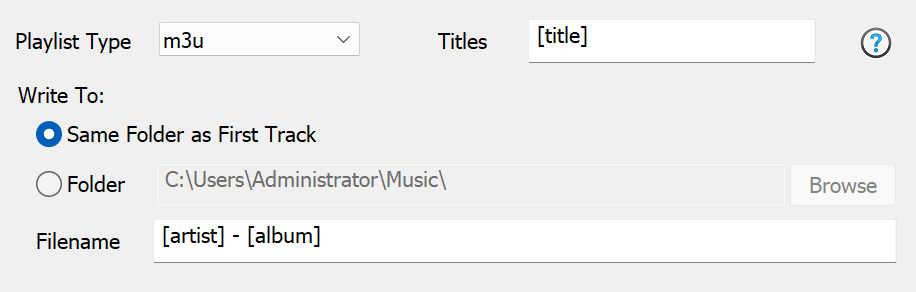
Writes a Playlist file: .m3u, .pls or .m3u8 (a unicode m3u) containing all files converting or ripping. Titles specifies the title assigned to a track in the playlist.


Playlists can be written to the same folder as the tracks, or a designated folder. The actual filename is set by Filename.


    Preserve Source Attributes

It is possible to copy attributes from the Converted From file to the destination file.

Creation Date, Last Accessed, Modified Date and File Attributes (such as read only) are preserved.


    Read Metadata File

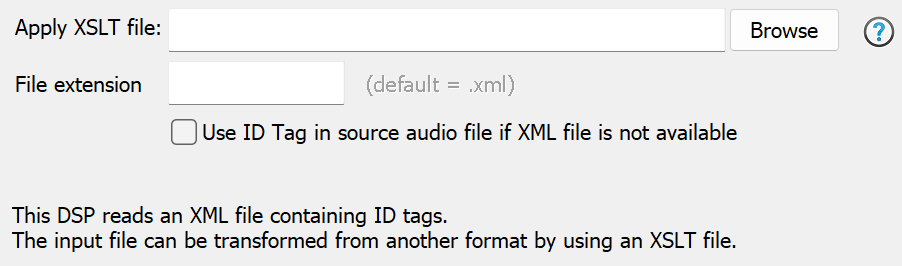
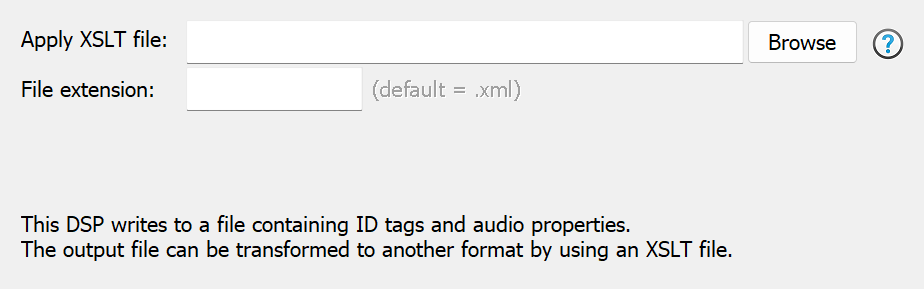
This DSP imports metadata from an external XML file, by default (with Apply XSLT blank) all ID tags are imported from the standard XML file (see below).


A template can be used to transform data from other XML structures, to do this set Apply XSLT to the template file you want to use. See the example XSL templates in \dBpoweramp\DSPs\XSLT import.

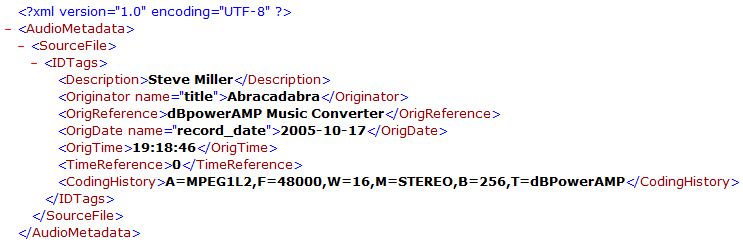
XML input data should have the following format (either as the input file or after applying an XSLT template):


The tags in the <IDTags> node can have any XML compliant name and can also include an attribute (e.g. name="title"), which may include spaces. If the "name" attribute is available, this will be the ID Tag name in the destination sound file. If the attribute is not available, the tag name will be used.

Important Note: XML data must always be encoded using UTF-8.


    ReplayGain

ReplayGain calculates average loudness of audio files on a track or album basis, a compatible player will play all tracks with the same loudness.


ReplayGain values are written to ID Tags, audio is untouched. There are two types of ReplayGain:
  • Track Gain: volume levels are calculated for on a track-by-track basis,

  • Album Gain: calculated levels are for the whole album, an intentionally quiet track remains so.
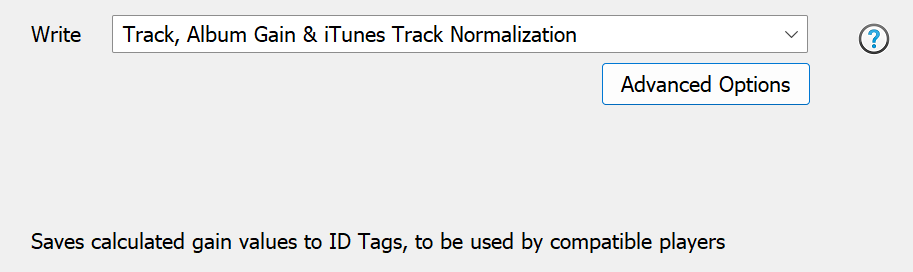
Write specifies which tags are written, including iTunes compatible tags.

Advanced page enables fine tuning of:

Albums identified by either the album ID tag, or all files in same batch, or all tracks in the same folder regardless of the ID Tags.

Gain Calculation EBU R128 is recommended, to the reference target loudness of -18 LUFS.

It is also possible to disable the clip prevention, the player should have clip prevention if disabled.

True peak oversamples the file on calculation, which often happens on playback by DACs, this allows oversampled clipping to be calculated and taken into account.


    ReplayGain (Apply)

This DSP is for those who have files already tagged with ReplayGain tags, but do not have a compatible player, the volume is adjusted as the file is converted.


Replay Gain calculates the average loudness of audio files, normally the gain adjustment is written to the ID Tags for a compatible player.

Use the effect Volume Normalize if want the same effect but source files do not already contain RG ID Tags.

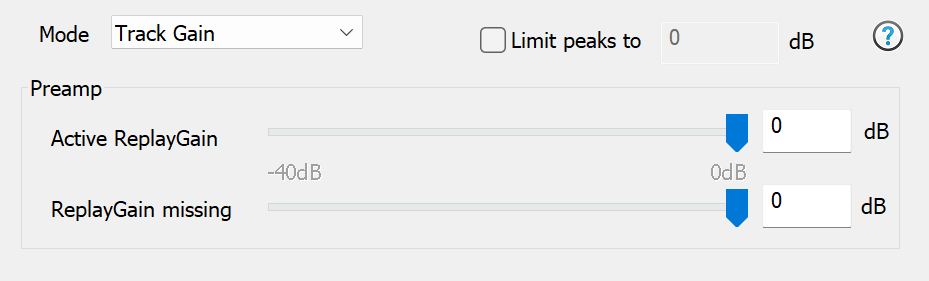
Mode sets which type of ReplayGain tag to use, Track or Album Gain. 

Limit peaks to X dB uses ReplayGain to remove clipping using stored clip values.

Preamp can be used to set a lower target volume, inactive ReplayGain refers to source files with no ReplayGain tags.


    Resample

Sample Rate Conversion (SRC): audio is resampled from one frequency to another, typically a higher frequency to a lower frequency for compatibility reasons (audio player which cannot play higher frequencies).

There is an option to set Minimum and Maximum frequencies, this enables the supported frequencies of a player to be set and files will be resampled within this range, frequencies already within the range are left untouched.

Advanced options page allows SRC conversion routine to be selected. See SRC conversion tutorial and view test results of various different SRC.


    Reverse

Takes an audio piece and reverses it, what use is that? there is a Stone Roses track which is reversed, certain tracks are said to contain hidden voices which can only be heard when played in reverse. This effect is non-live.


    Run External

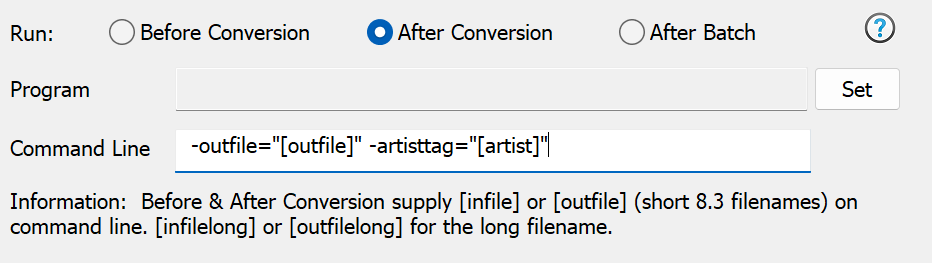
Allows an external program / batch file to access files before or after conversion. Click Set and choose a program to run, then specify a command line the program needs.


Before Conversion specify [infile] on the command line.

After Conversion use [outfile]. Many more items can be passed on the command line, see Dynamic Naming.

No dynamic elements (such as [infile] or [outfile]) can be used with After Batch which is run once after all files are converted.

[infile] and [outfile] supply filenames by short-filename 8.3, this allows unicode filenames to accessed by non-unicode programs. In addition [infilelong] and [outfilelong] can be used to pass the full filenames. An example of the 2 filenames, there is a file:

   C:\A Folder\A File.mp3

The short filename would be: C:\AFolde~1\AFile~1.mp3   opening this file opens the one above. The long filename is simply the full one above.


    Speed up, Slow down

Changes audio temp, for example Speed x2.00 will speed up audio by a factor of two, and Speed x0.50 will halve playback speed.

This effect is non-live.


    Trim Silence

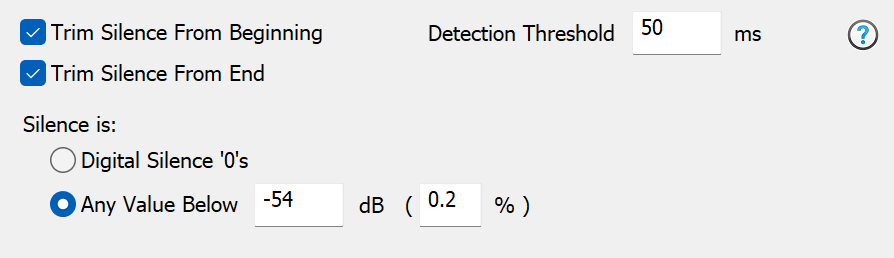
On certain tracks is silence present at the beginning or end of the track. This DSP effect can detect and remove such silence.


Detection Threshold sets the minimum time average audio levels have to go over the set silence value before it is classed as non-silence. If Trim Silence is eating audio it should not, enter a lower dB value, such as -44.

This effect is non-live.


    Trim

Remove a set length of audio from the beginning or end of the file. This effect relies on the correct audio length to be detected before decoding (if trimming from end), use Force-Non Live if using effects which change the length.


    Volume Normalize

Adjusts volume by amplification of the audio signal.

There are 6 different ways of adjusting volume. Note the process is lossy, that if the volume is halved the reduction is lost forever and cannot be reversed, as such it should be done on a copy of a lossless library, keeping the originals safe:
  • Peak to Peak: simplest, peak (or maximum) value is found and the whole track volume is adjusted so that peak touches the desired volume,

  • ReplayGain: a more advanced, the average loudness is calculated and the volume is adjusted. This method does not use ID Tags to store ReplayGain values, rather the audio is adjusted. If a Replay Gained track is played next to a non-Replay Gained track, it will sound quieter, as Replay Gain requires head-room to prevent clipping.

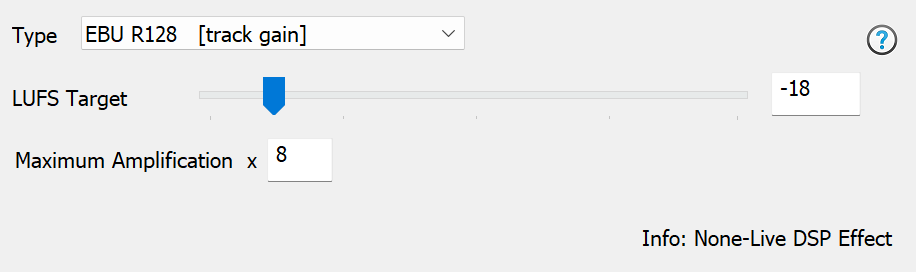
  • EBU R128: a newer standard of ReplayGain, the average loudness is calculated and the volume is adjusted. This method adjusts the audio. Internally the audio is calculated to a -18LUFS level which is adjustable.

  • Adaptive: the best way to describe adaptive, is like having your hand on the volume knob, constantly adjusting it up and down (a window is used to detect loudness) to compensate for quiet parts, ideal for creating a track to play in a noisy environment (such as car). Adaptive is offered for EBU and Peak to Peak volume calculation.

  • Fixed Amplification: Amplifies the audio by a fixed amount, +6 dB is x2, where -6 dB is divide by 2, be careful not to clip audio (go over the maximum).

  • Reduce if Above: Allows the volume to be reduced to match a set value (based on peak to peak). Ideal if using a DSP effect chain with the audio set to floating point, to reduce the audio to a set peak value, prior to setting the audio to PCM. Differs from Peak to Peak, in that if the existing peaks are below the desired value, it is not scalled up.
Maximum Amplification sets a limit on the amount of amplification applied (set too high, on adaptive and silence will become noise).

Desired Volume can be set higher than 0 dB (which is maximum), setting 12 dB is 4x the maximum, use with care otherwise the signal will clip.

This effect is non-live.


    VST

Allows VST effects to be used.


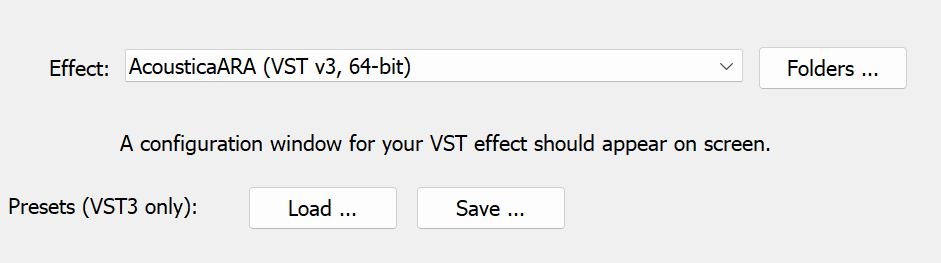
When first run the effects on the system must be scanned to find compatible effects, if at a later date new effects are added press the Folders button.

Select effect required from the drop box, the settings page is shown. To change settings click Ok, and reopen DSP. Note only the selected effect is used.


    Write Metadata File

Exports metadata to an external XML encoded UTF-8 text file.


By default (with Apply XSLT blank) all fields are exported. A template can be used to limit fields, set Apply XSLT to the template file, see the example templates in \dBpoweramp\DSPs\XSLT


    Write Silence

Writes silence into the audio.

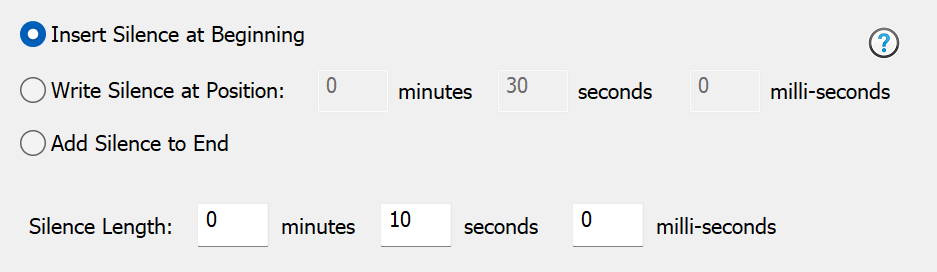
Silence of a specified length can be inserted at the beginning, appended to the end, or written to any part of the track.


Back To Main Index