dBpoweramp Music Converter { Help Index > Batch Converter }
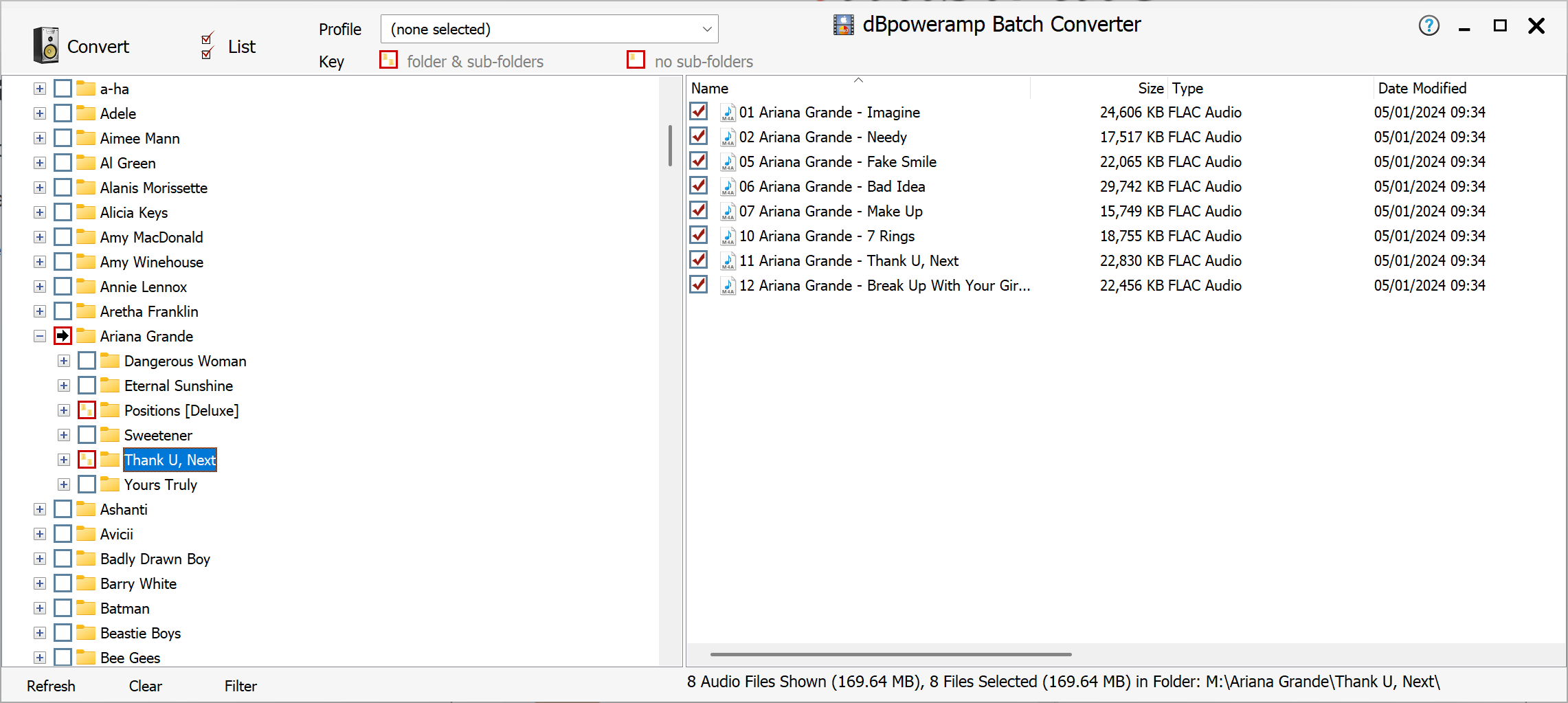
Batch Converter facilitates converting large numbers of files, be them in folders and sub-folders, with 1 click.
It is also possible to selectively convert just one audio type with the filter button.
Drag and drop a folder or file from Windows explorer to auto select that item in Batch Converter.
Place a tick mark next to the file(s) to convert, or folders. Then click Convert and Music Converter takes over.
Converting Folders
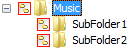
Click once on the square box next to a folder, this selects all files and all subfolders for conversion:
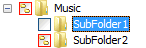
SubFolder1 and SubFolder2 have been selected also, to exclude SubFolder1 click on the box next to SubFolder1, until it contains a blank space:
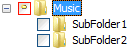
To exclude all sub folders, click on Music's box once more:
Individual tracks can be excluded from a folder by clicking on the tick box to remove the tick.
Preserving Folder Layout
On Music Converter options page click 'Output To' drop box, choose Existing Source Path to place the new files in the same location as the source files, or choose 'Preserve Source Path' to place the files in a new location, which the folder layout preserved in this new location. See Naming Details
Excluding Audio Types
It is possible to exclude audio types, by clicking the Filter button. Only tracks with a check mark are converted.
Filtering On Bitrate
Once all files are selected for conversion, click List, wait for all audio properties to be read then right click on a column header (such as Name) and select the item to sort by, such as bitrate. By clicking on the bitrate column, tracks are sorted by bitrate. To exclude certain bitrates, select first file, hold shift key and and select last file, next right click >> Uncheck All, only files of a certain bitrate will be converted.
A filter button is also present on the main page, this allows after files have been selected, to be filtered based on their ID Tags (such as remove an artist), or filter on date.
Converting a Lossless library to mp3
It is common to have a lossless library (such as FLAC) and create a mp3, or AAC library for a portable player (if want to automate this check out TuneFUSION). To do so:
Select your whole library root folder, and click Convert.
On the Music Converter page, for Output to choose Preserve Source Path and set Base Location to a unique location to store the mp3 files, the folder layout will be recreated at the new location,
Click Convert >> if redoing the mp3 library add the DSP effect Conditional Encode and set to skip already existing destination files.
Profiles
If a profile is created, or select a previous profile: all selections are automatically saved to that profile, this also includes all entries under 'Filter' and settings made later in Music Converter. When creating a new profile there is an option as to whether file selections should be remembered for that profile.
Joining Files
Batch converter has an option to join files together as one. On the List page is a button Concatenate when clicked offers a page to order the files in correct order, then Convert to any format.